A Step-by-Step Guide to Setting Up AI Calling in Pronnel
Use this tutorial to set up AI Calling in Pronnel from scratch. You will learn how to connect your telephony provider (such as Twilio or SIP), configure AI agents, attach knowledge sources, and safely go live so your AI can handle real customer conversations.
Whether you want an AI-powered inbound support line, outbound qualification calls, or always-on follow-ups, this guide walks you through every key step so you can launch quickly while staying in full control.
Complete Guide: Setting Up AI Calling in Pronnel
Step 1: Purchase a Plan in Pronnel
Click on the Profile icon in the top-right corner and select "Edit User Settings".
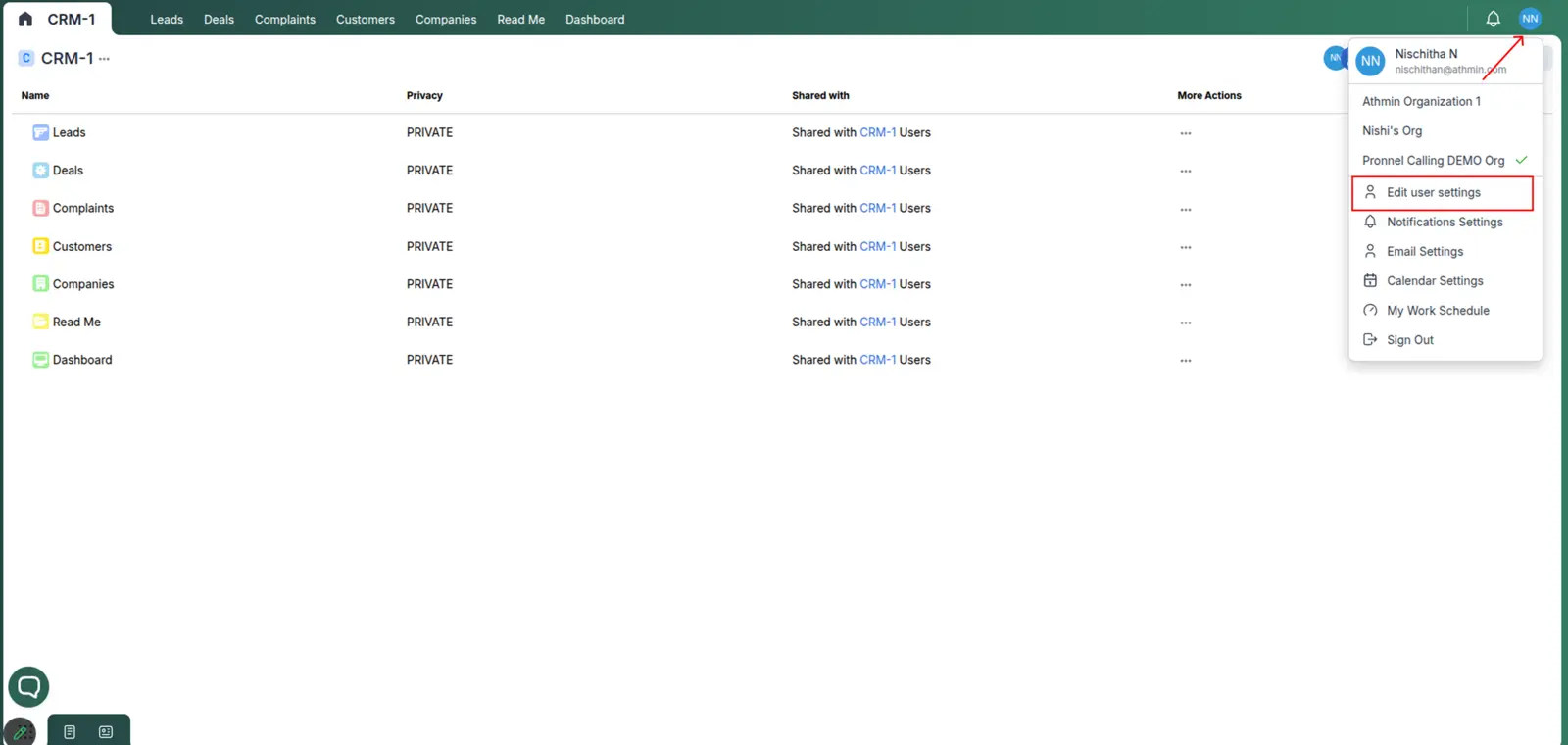
Go to the Billing tab and select the "Standard Plan". To activate AI Calling, your organization must have at least three users. Once you purchase the plan, the full amount will be credited to AI Calling, which can be used for calling.
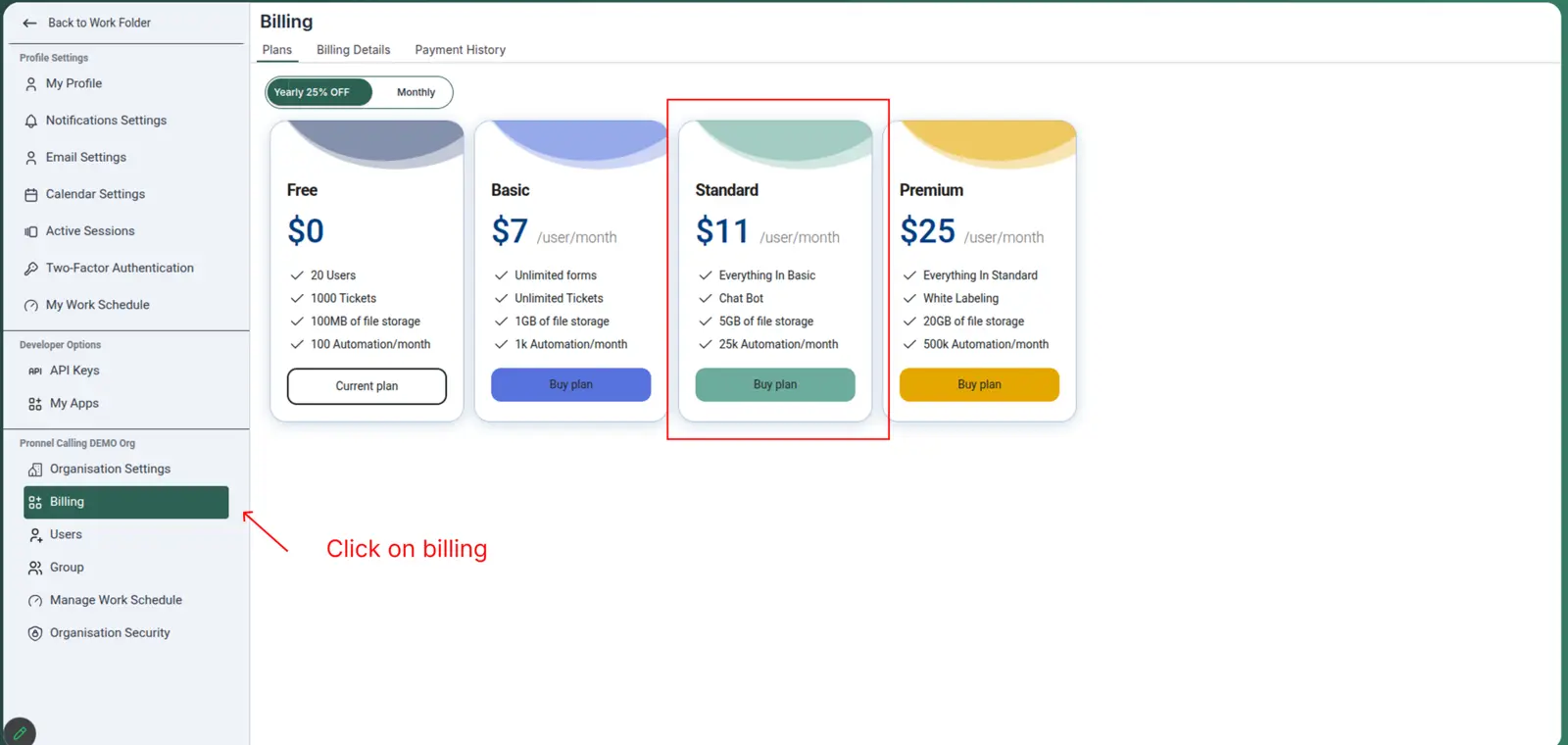
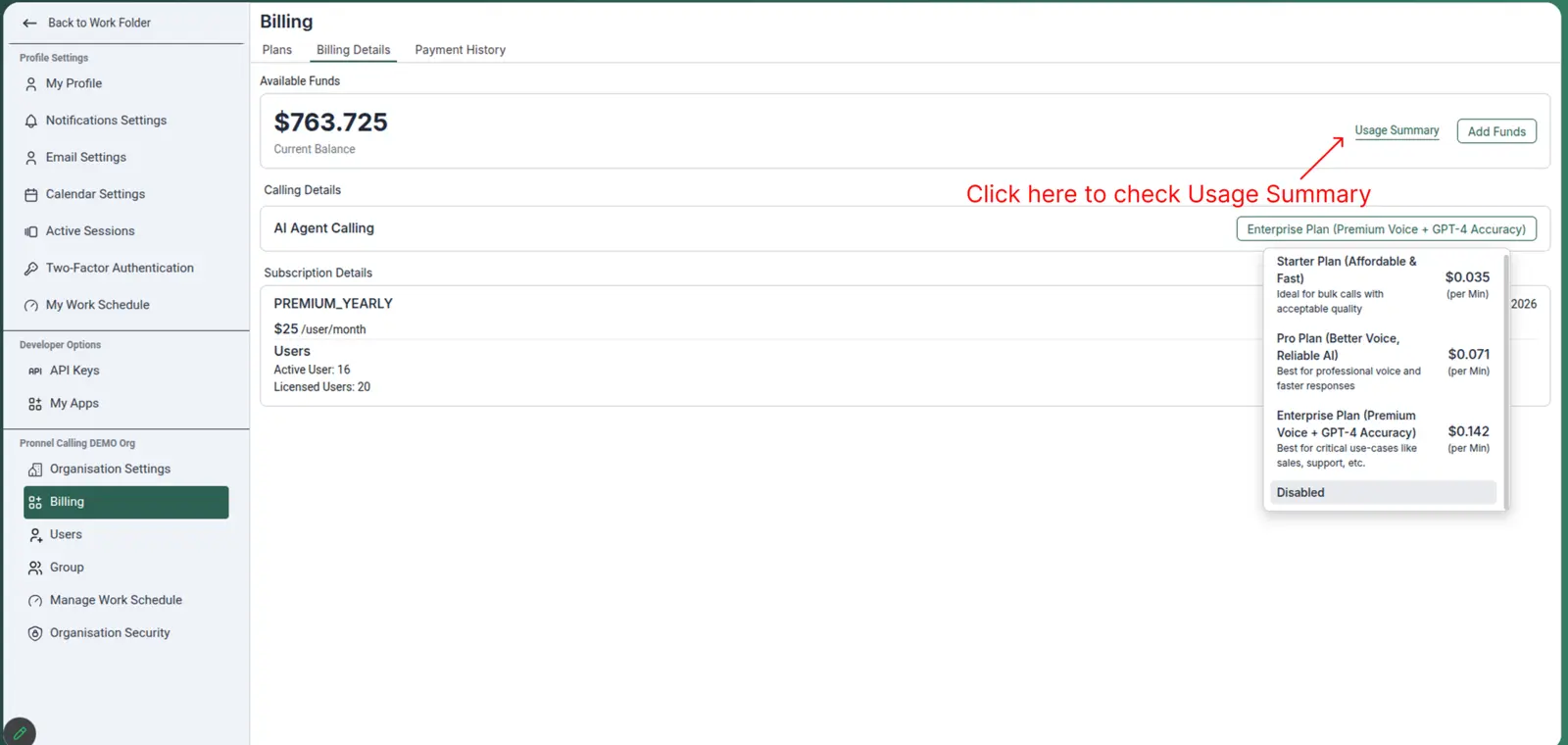
Click on "Billing Details" to view the amount credited to your account. Then click on the “Enterprise Plan” to open a popup. Find the "Enable" option and click it to activate AI Calling.
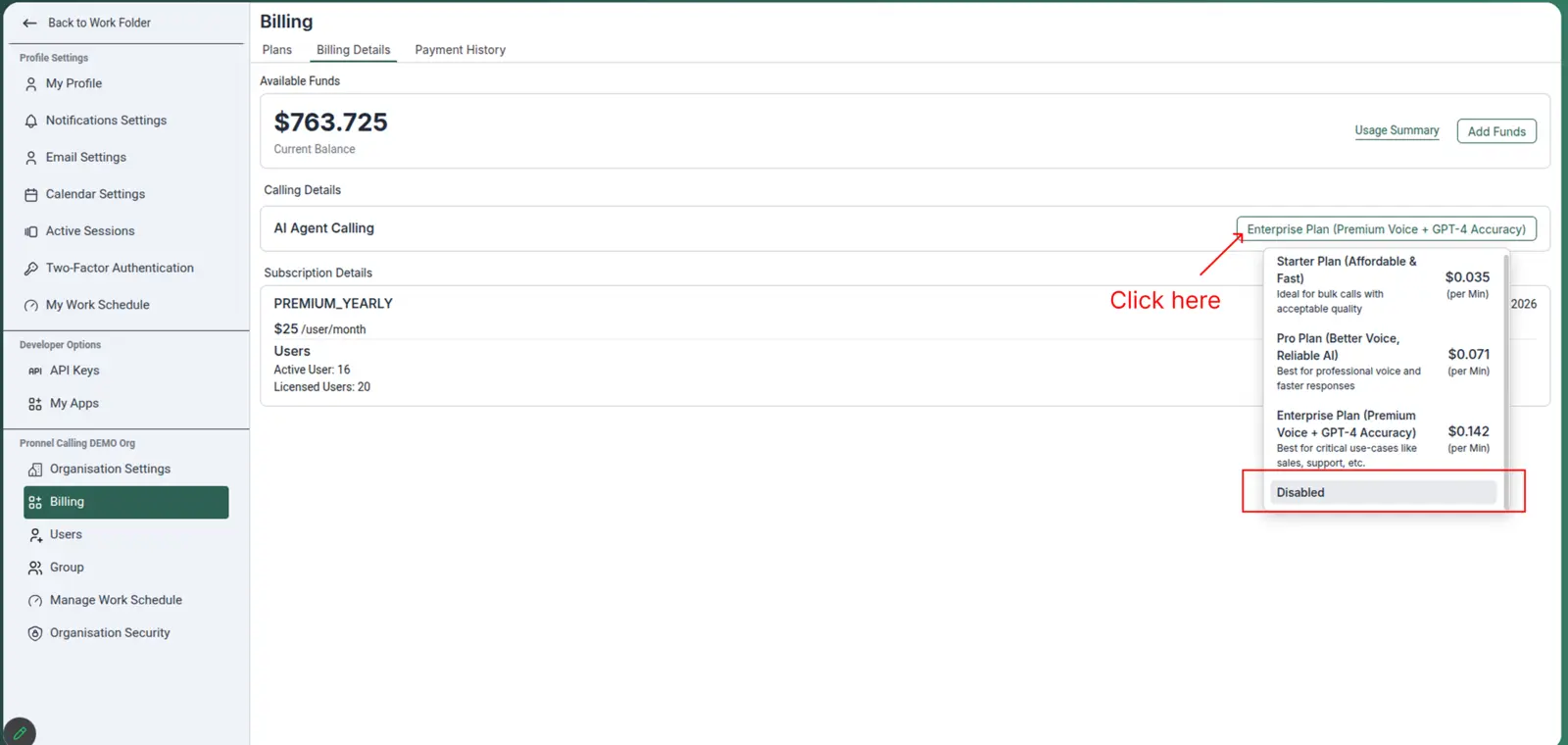
After enabling the feature, you are ready to create your first AI Calling project. To add more funds to your account, click on "Add Funds".
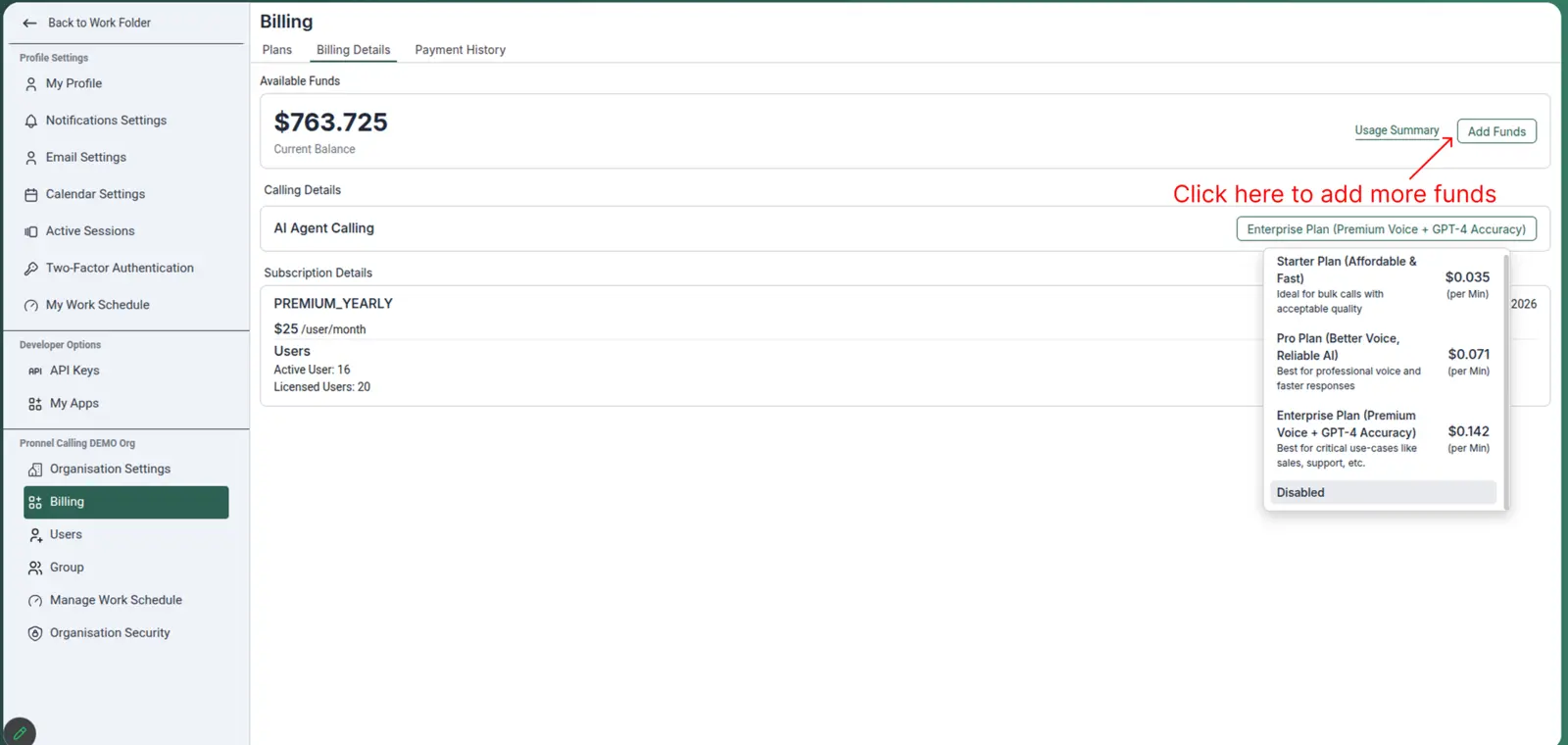
Click on "Usage Summary" to track the AI Calling usage for your account.
Step 2: How to Create a New Chatbot
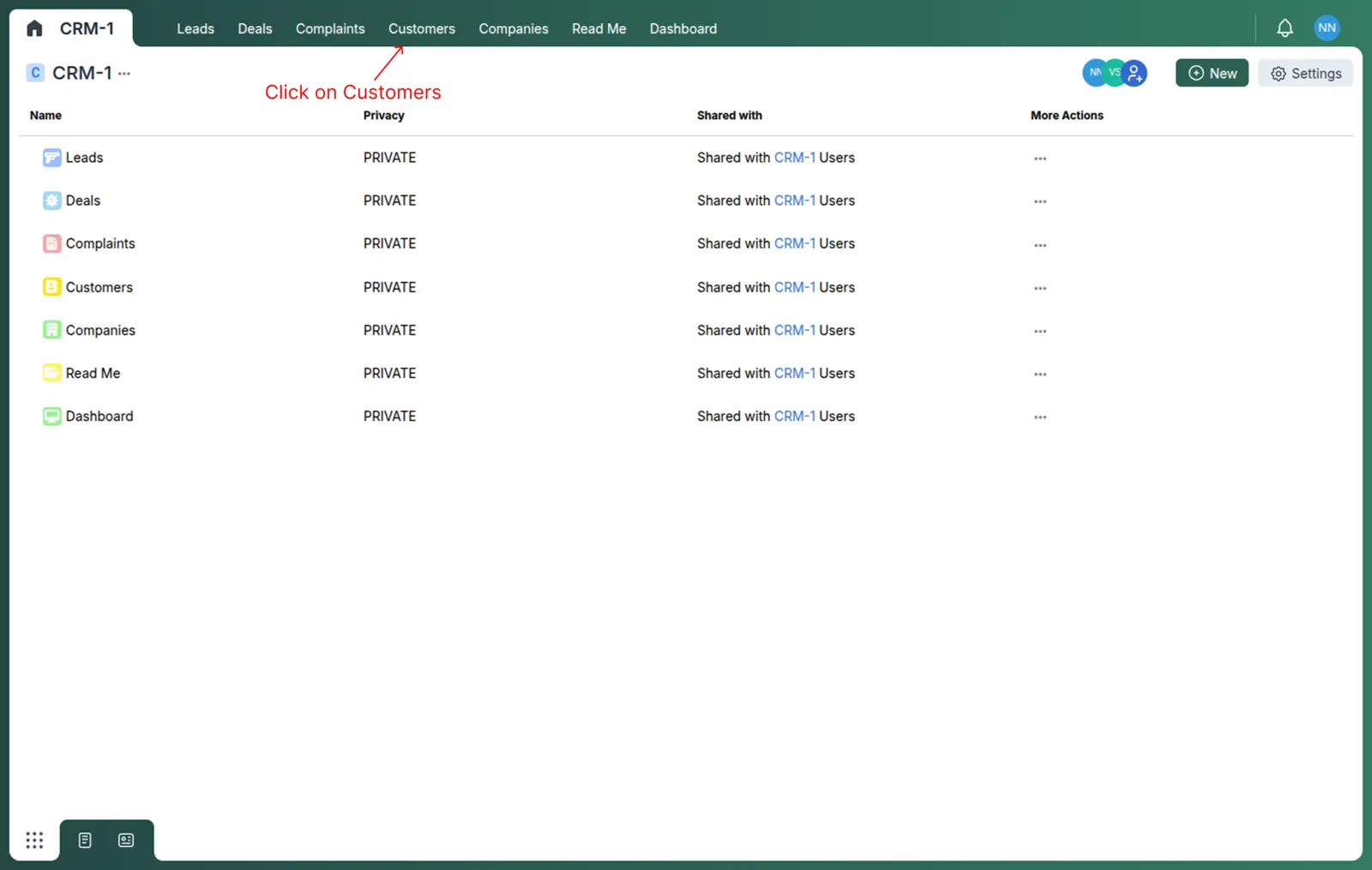
At the top of the page, click on the “Customer Board”.
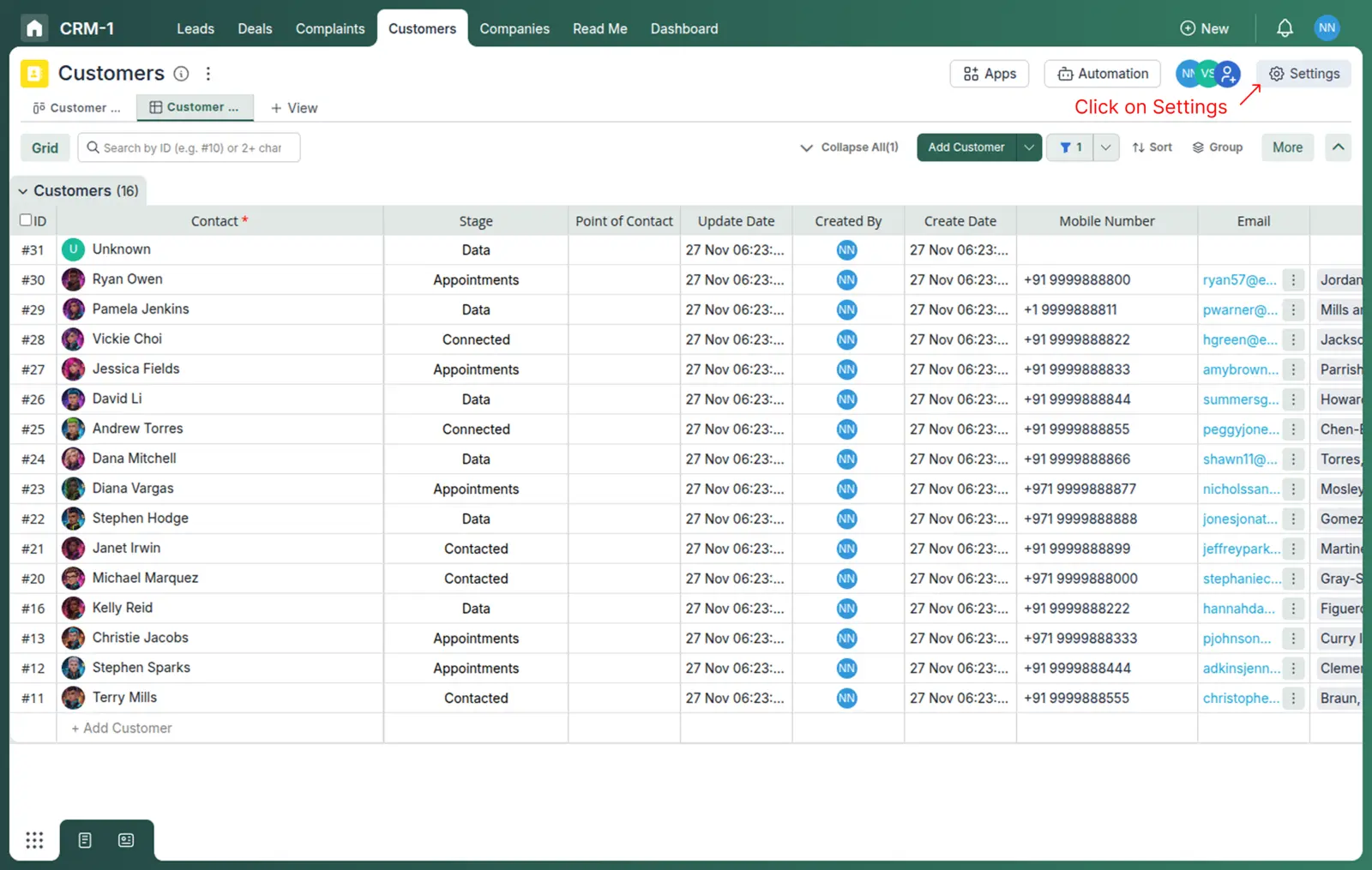
After opening the Customer Board, click on the “Settings” icon in the top-right corner.
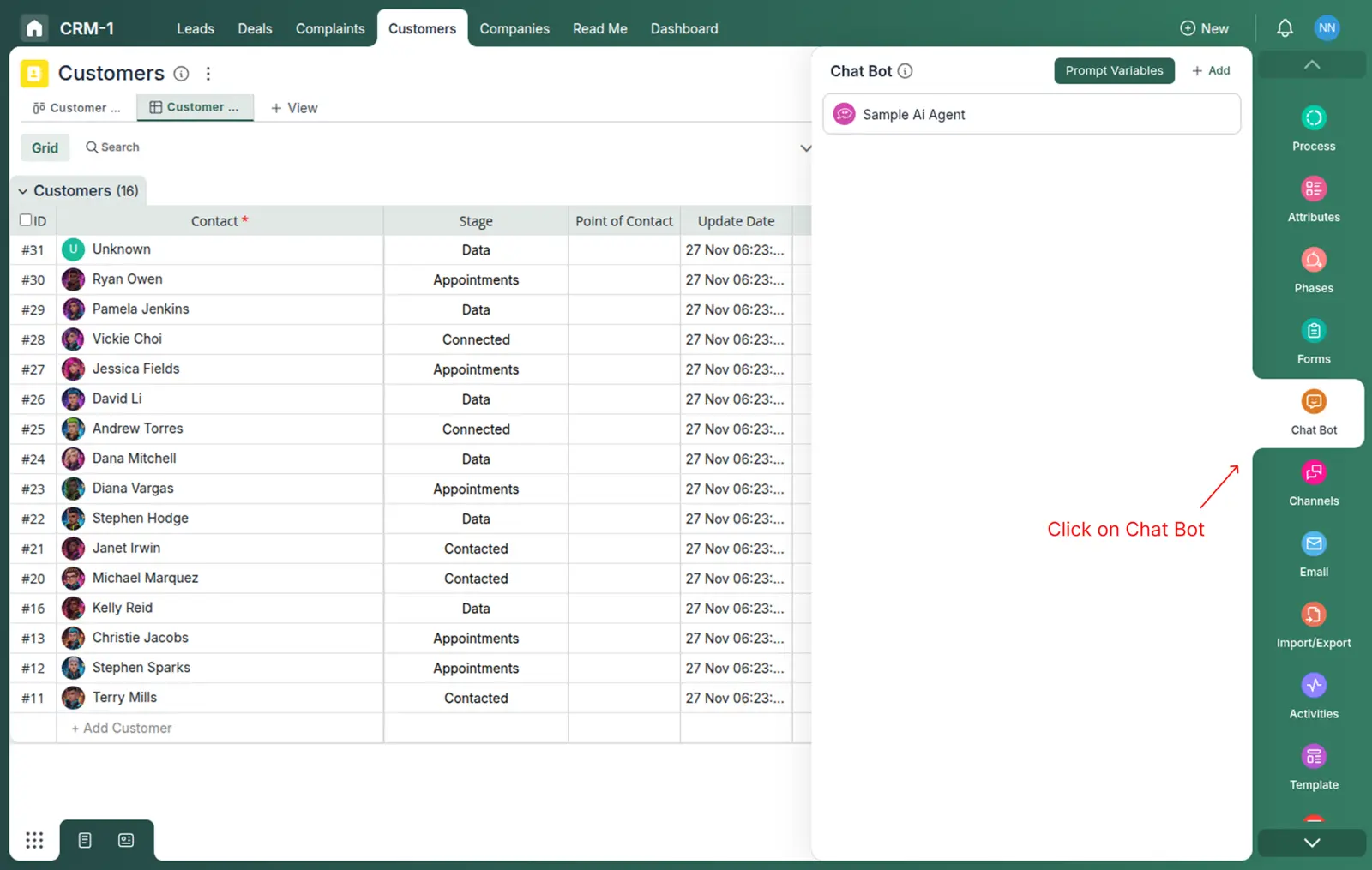
In the Settings menu, scroll down to the “Chatbots” section and click on it.
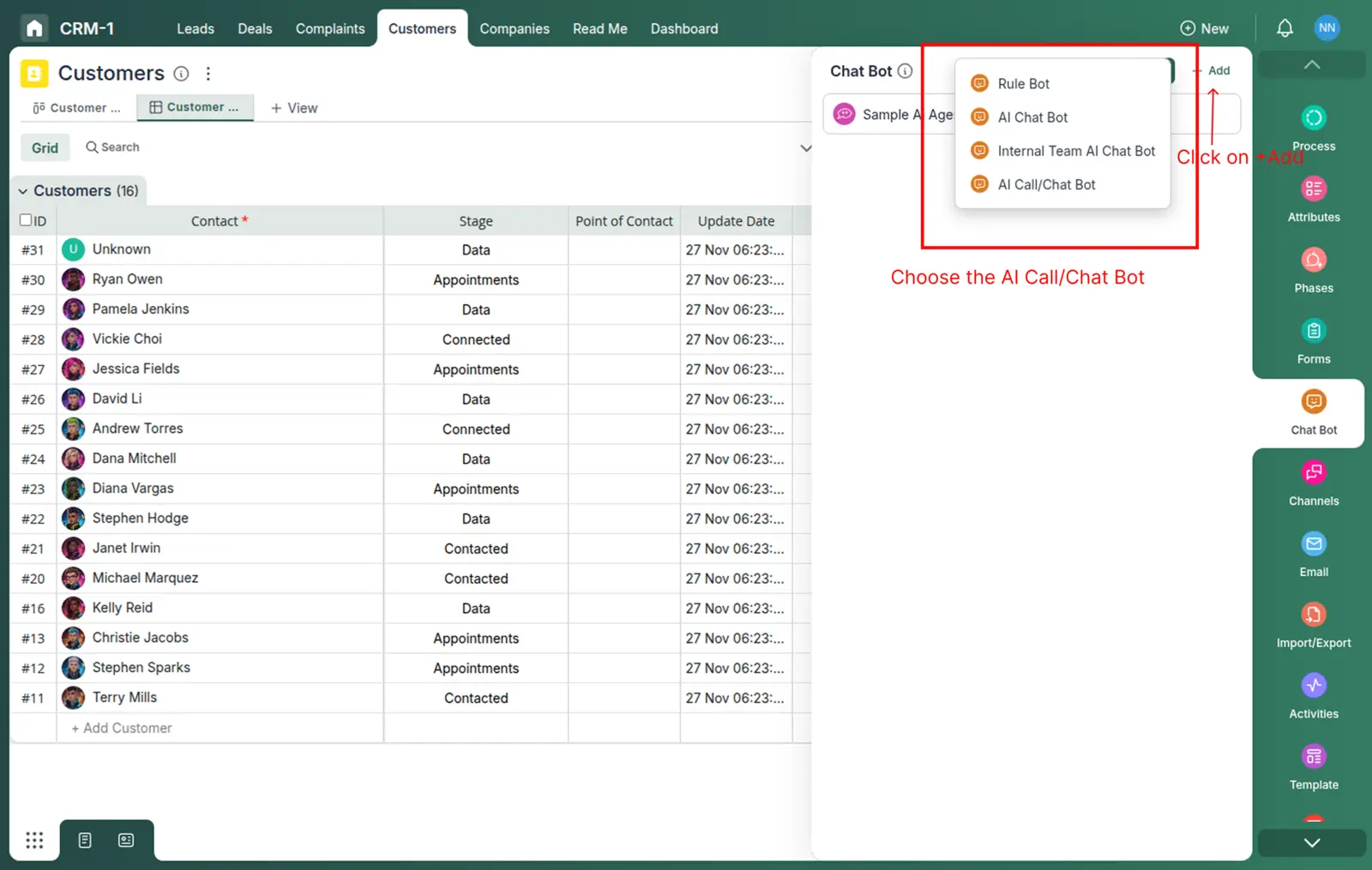
Click on the + Add icon to create a new chatbot
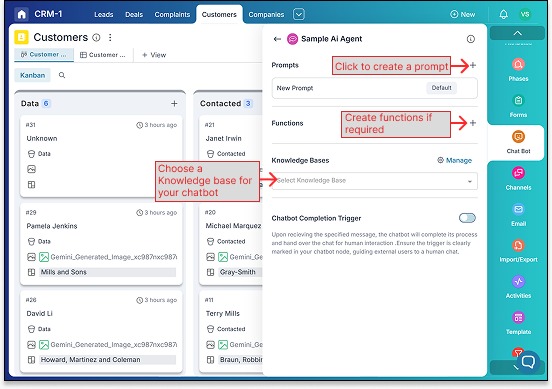
- Next to the “Prompts” section at the top, click the "+" icon to create a new prompt.
- To create functions, click the "+" icon and select “Functions”
- Select a Knowledge Base from the dropdown. Click on “Manage” to add or modify your Knowledge Base.
- Enable the "Chatbot Completion Trigger" to stop the chatbot response after the trigger is completed.
Step 3: How to Create a Knowledge Base
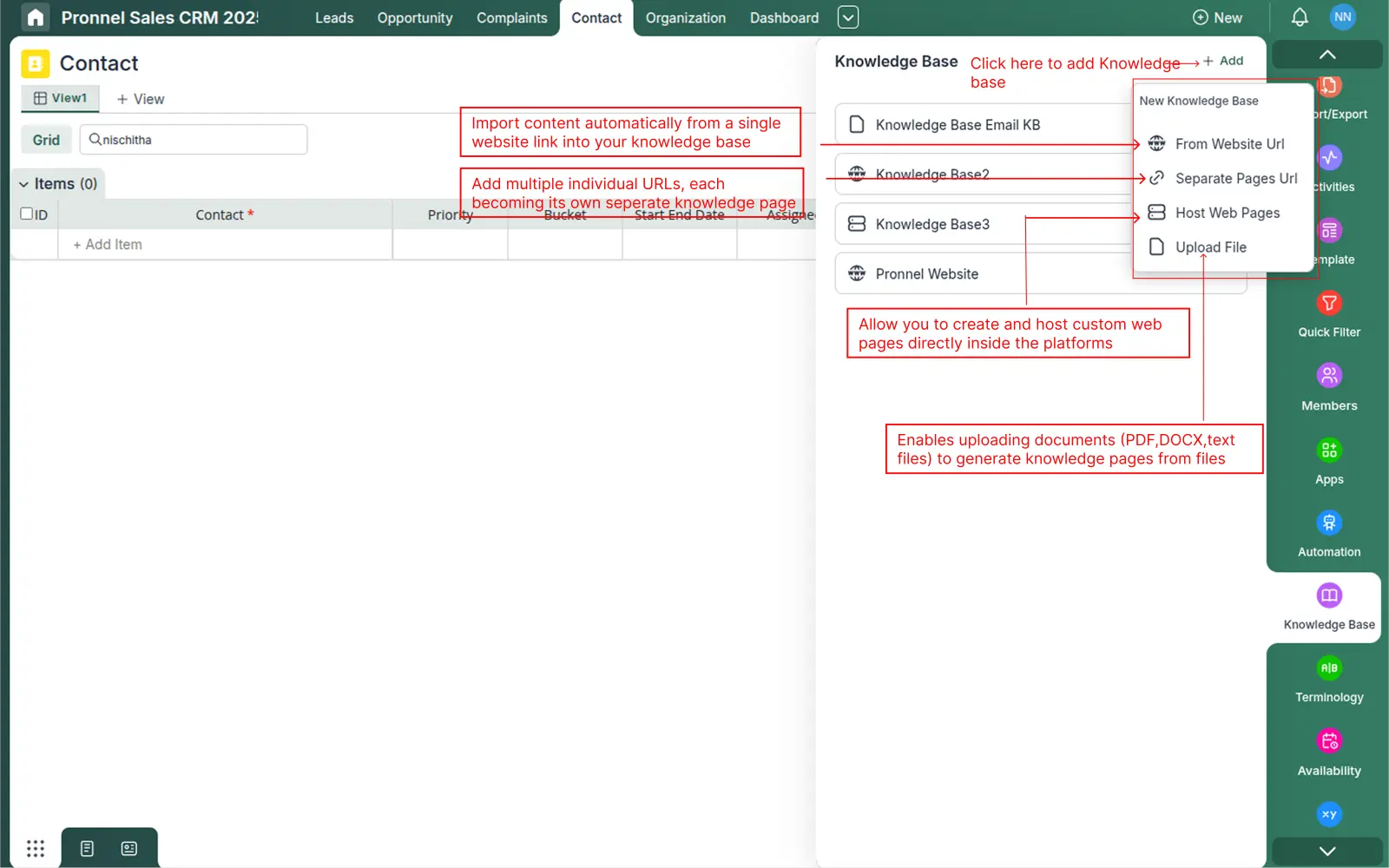
In the Settings panel, scroll down and locate the Knowledge Base section. Click on it to begin creating your Knowledge Base.
When you click the Add button, you’ll see multiple options for adding content. Each option helps you create knowledge pages in a different way:
- From Website URL – Automatically imports all readable content from a single website URL into your Knowledge Base.
- From Separate Pages URL – Allows you to add multiple individual URLs. Each URL is converted into its own separate knowledge page.
- Host Web Pages – Lets you create and design custom web pages directly inside the platform.
- Upload Files – Enables you to upload documents such as PDFs, DOCX, and text files, which are then converted into knowledge pages.
Step 4: How to Configure Your Chatbot Assistant
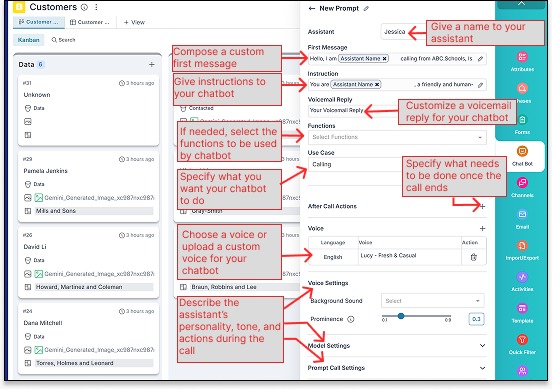
The prompt creation panel allows you to fully customize your AI Calling assistant. Each section helps define how your assistant behaves, speaks, and performs actions during and after the call. Refer to the image below while reviewing the instructions:
- Assistant Name – Give your chatbot a unique name. This helps identify the assistant inside your AI Calling projects.
- First Message – Write a custom message that the assistant will speak when the call begins. This becomes the intro line for every conversation.
- Instructions – Provide specific guidance on how the chatbot should behave, what information it must collect, and how it should interact with the customer.
- Functions – (Optional) Select from predefined functions if your chatbot needs to perform additional automated tasks such as fetching data or updating records.
- Use Case – Mention what the assistant is expected to do (e.g., lead qualification, data collection, appointment reminder). This helps tailor the call flow.
- Your Voicemail Reply – Customize the voicemail message that your assistant will leave if the customer does not answer the call.
- After Call Actions – Define what should happen once the call ends—for example, update a status field, send a follow-up message, or trigger an automation.
- Voice Settings
- Language & Voice – Choose the assistant’s speaking language and select from available standard or premium voice options, or upload a custom voice.
- Background Sound – Add optional background ambience (e.g., call center noise) to make conversations sound more natural.
- Energy & Style – Adjust the tone, energy level, and speaking mood to match your assistant’s personality.
- Personality & Behavior – Describe how the assistant should talk, react, and handle different situations during the call. You can define tone (friendly, formal, energetic), pace, and any behavioral guidelines.
Step 5: How to Get Your Twilio Account SID, Auth Token & Phone Number
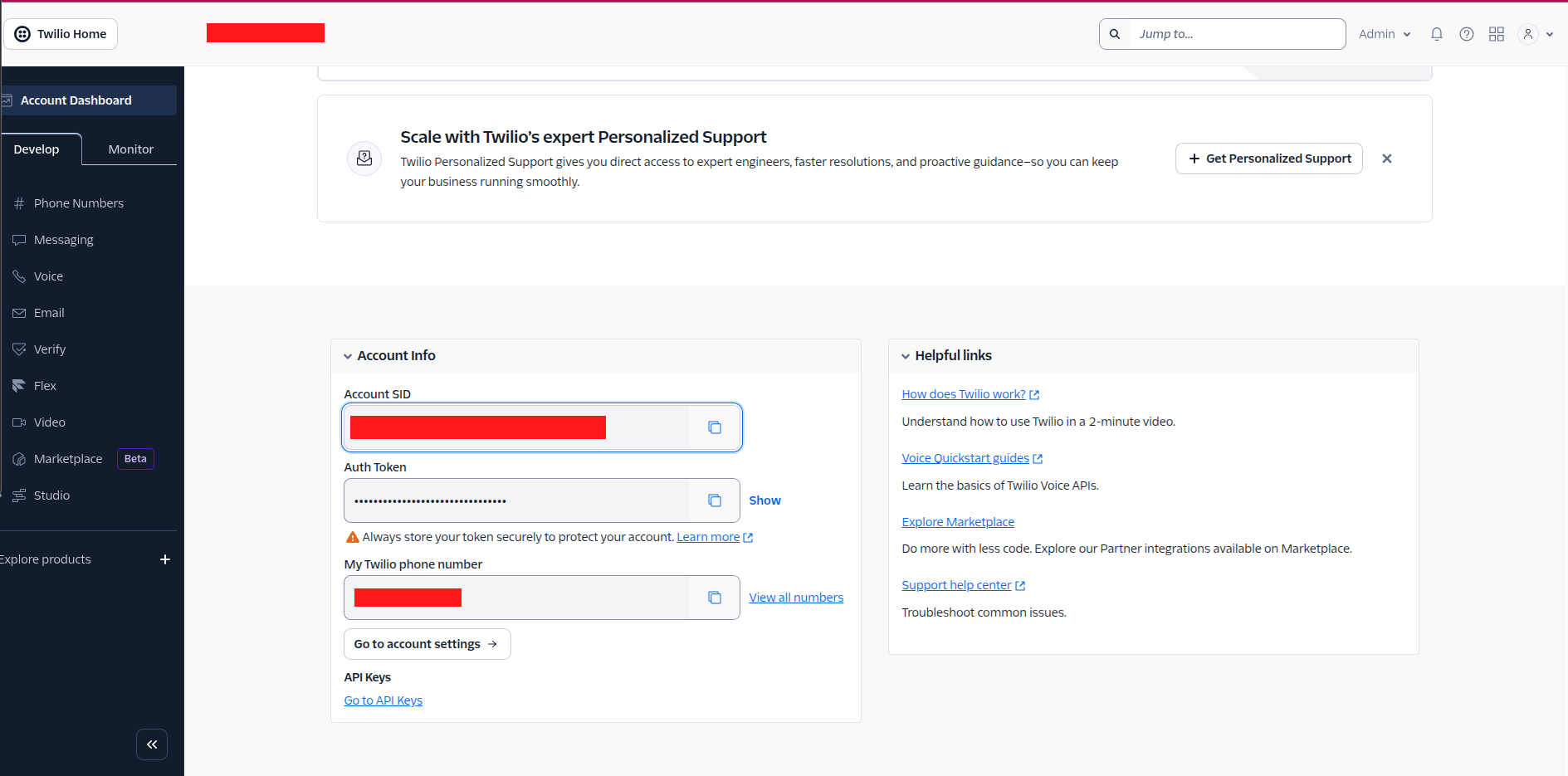
To connect Twilio with Pronnel AI Calling, you’ll need three important details from your Twilio dashboard: Account SID, Auth Token, and your Twilio Phone Number. Follow the steps below to retrieve them.
- Account SID – A unique identifier for your Twilio account. Pronnel uses this to connect securely with Twilio services.
- Auth Token – Your private authentication key. This must be kept secure because it authorizes Pronnel to use your Twilio account.
- Twilio Phone Number – The number used by your AI agent to make and receive calls.
To find these details, open your Twilio Console (https://console.twilio.com/). On the homepage, look for the Project Info card. Here you will see your Account SID immediately. The Auth Token will be hidden by default — simply click the eye icon to reveal it.
Next, scroll down to the Phone Numbers section and select the number you want to use. The chosen number will appear in the Active Numbers list and can be copied directly into Pronnel.
Step 6: How to Integrate Twilio Channel with Your AI Chatbot
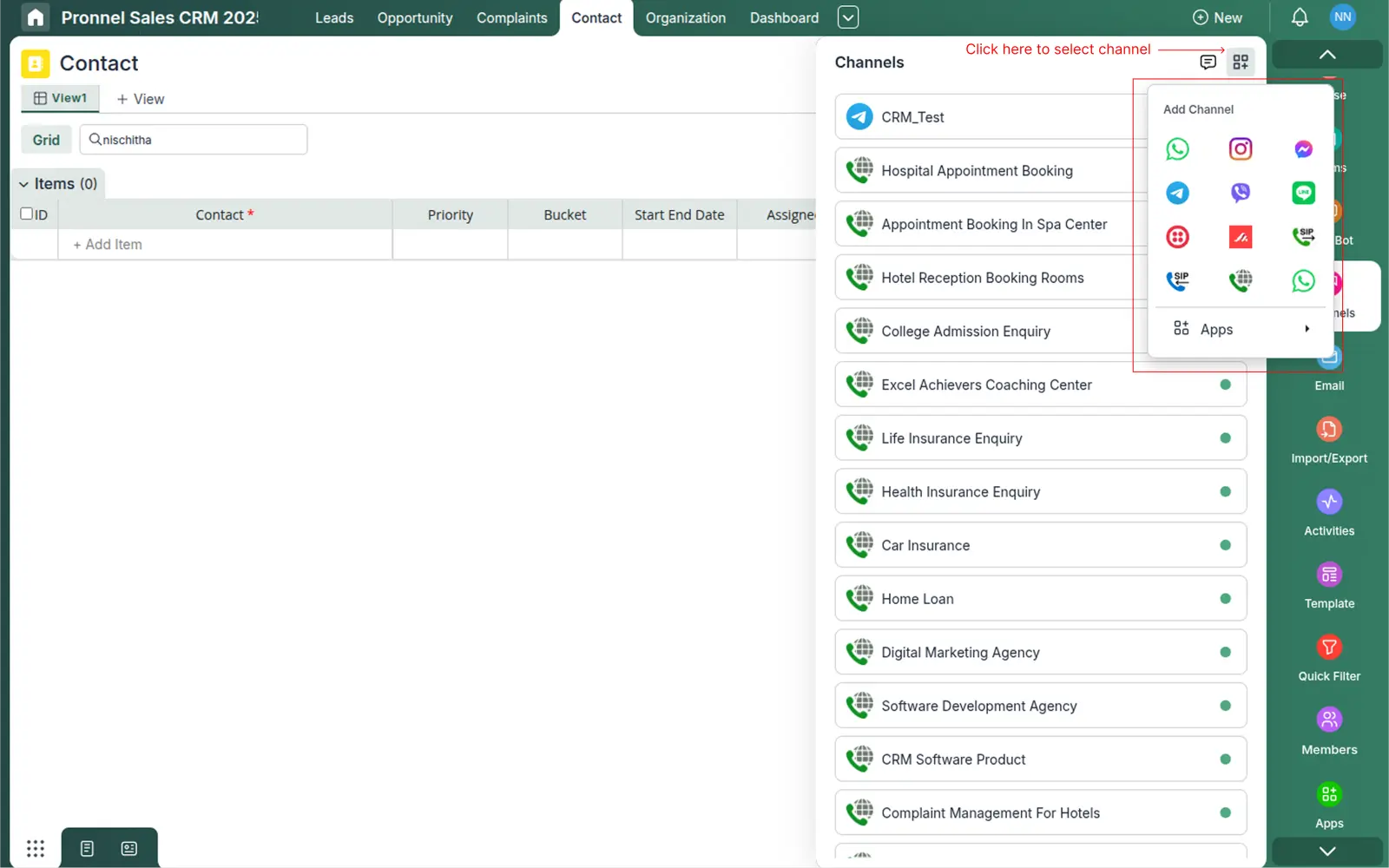
In the Settings panel, scroll down and locate the Channels section. COn top right corner click on Add Channel and select TwilioFrom list of channels in a popup.
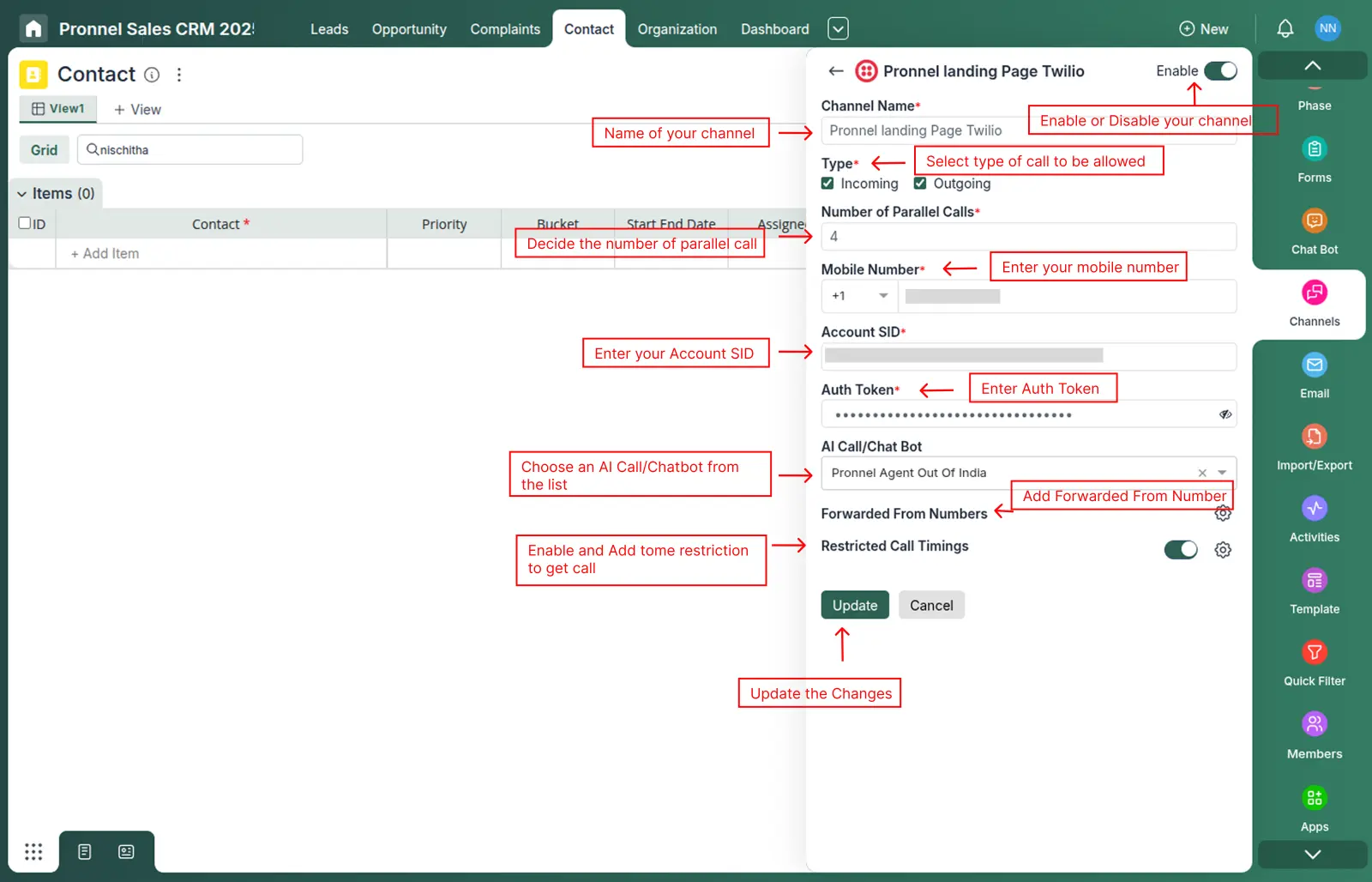
This section allows you to connect your Twilio number with your AI Calling chatbot. Once configured, the assistant can make outgoing calls or receive incoming calls through Twilio. Refer to the image below for guidance.
- Channel Name – Give a recognizable name to your communication channel (e.g., “Twilio Outbound”, “Support Line”). This helps identify the channel inside your project.
- Type (Incoming / Outgoing) – Choose whether the channel should support incoming calls, outgoing calls, or both.
- Incoming – The assistant answers calls made to your Twilio number.
- Outgoing – The assistant initiates calls using Twilio.
- Number of Parallel Calls – Set how many calls your assistant can handle at the same time. Increase this if you expect high call volume.
- Mobile Number – Enter your registered mobile number associated with the Twilio account or required for verification.
- Account SID – Paste your Twilio Account SID. You can find it in your Twilio Console dashboard. This uniquely identifies your Twilio account.
- Auth Token – Enter your Twilio Auth Token. This acts like a password and authorizes Pronnel to connect securely with your Twilio account.
- AI Call/Chatbot Bot – From the dropdown, choose the custom AI Calling bot you created earlier. This is the assistant that will answer or make calls using the Twilio channel.
- Forwarded From Numbers – (Optional) Add any numbers that may forward calls to this Twilio number. This ensures the assistant handles forwarded calls correctly.
- Restricted Call Timings – (Optional) Set specific call hours during which your assistant is allowed to make outgoing calls. This helps avoid calls outside business hours.
- Connect Button – After filling in all details, click Connect to authenticate and activate the Twilio channel for AI Calling.
Once connected, your chatbot can instantly begin managing calls through the Twilio integration.
Step 7: How to Integrate Browser Calling with Your AI Chatbot
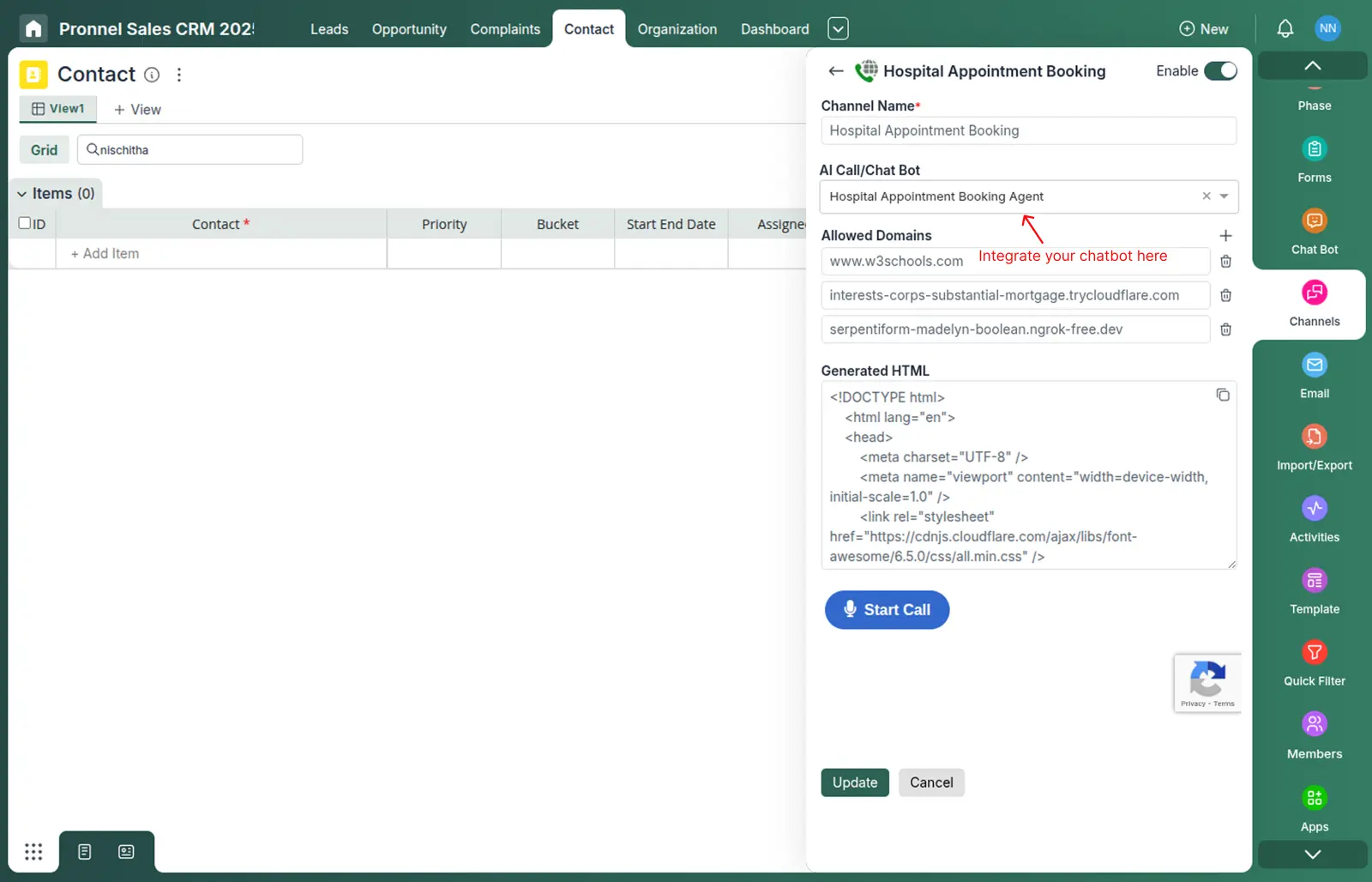
The Browser Calling Channel allows customers to place calls directly from your website using a built-in call widget. You can connect your AI Calling chatbot to this channel so the assistant can handle calls right from your webpage. Refer to the screenshot below while reviewing each section.
- Channel Name – Enter a meaningful name for your web channel (e.g., “Website Support Line”, “Demo Call Widget”). This helps you identify the channel within your AI Calling workspace.
- AI Call/Chat Bot – Select the AI Calling chatbot you previously created. This is the assistant that will answer calls made through your website.
- Allowed Domains – Add the website domains where you want to embed the call widget.
Only these domains will be allowed to serve or run the AI calling interface.
For example:yourwebsite.com,support.yourwebsite.com - Generated HTML – This box contains automatically generated HTML code for the call widget.
You must copy this HTML snippet and paste it into your website wherever you want the call button or widget to appear.
Developers typically add this inside the site’s<body>section or embed it into landing pages. - Start Call Button – A preview button that lets you test the call flow directly inside Pronnel. When clicked, it launches a browser-based call using the selected AI chatbot.
- Enable Toggle – Turn the toggle ON to activate this web channel. When enabled, the call widget will become live on your website.
- Update Button – Once all settings are configured, click Update to save and activate your Browser Calling channel.
- Cancel Button – Click this if you want to discard changes without saving.
After completing the setup and embedding the provided HTML into your site, visitors will be able to place calls directly to your AI assistant through your webpage.
Step 8: How to Configure SIP Calling Channel with AI Chatbot
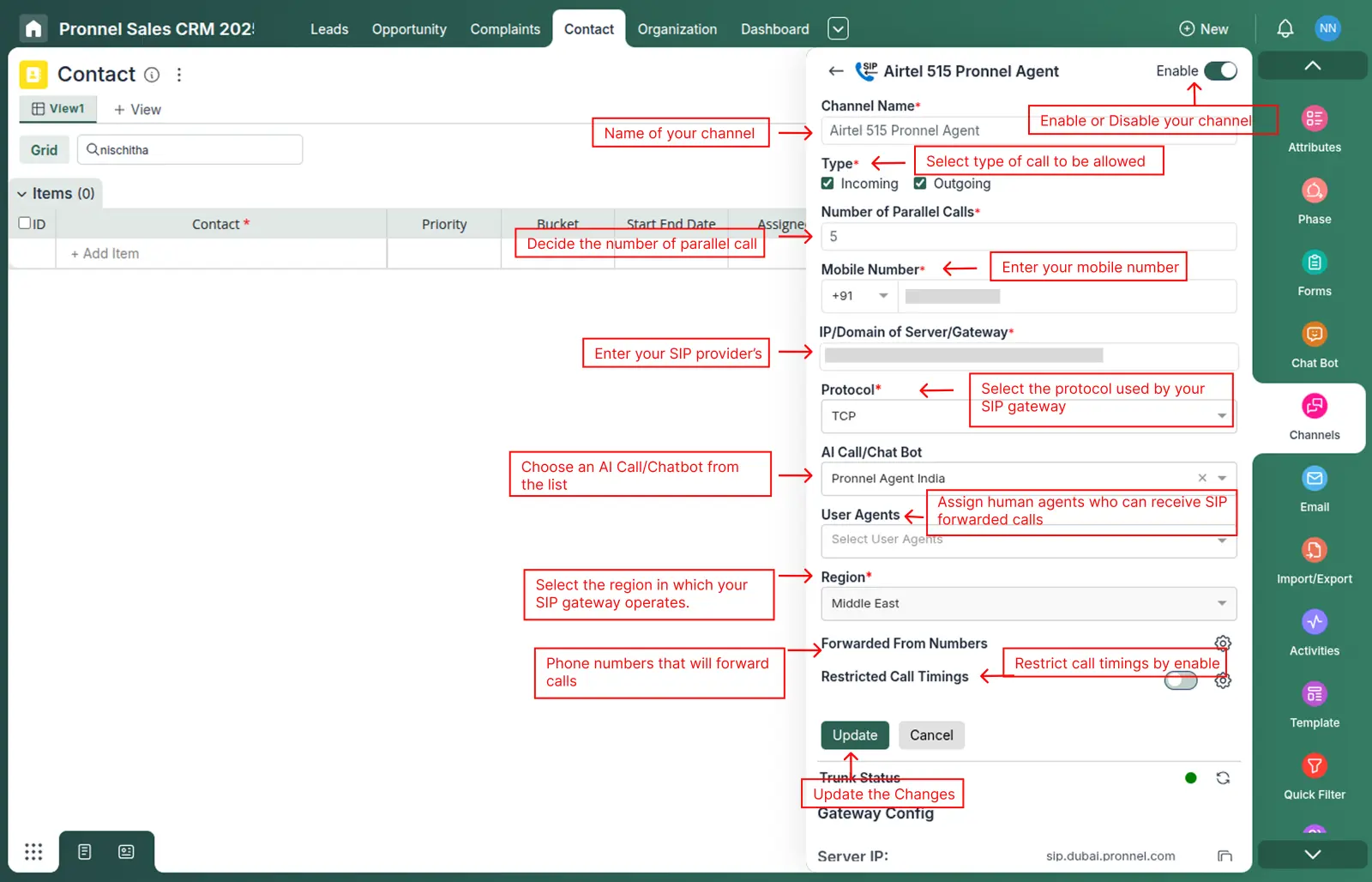
SIP Channel Integration allows your organization to connect an external SIP provider or PBX system directly with Pronnel’s AI Calling engine. This enables AI-driven inbound and outbound calls using your SIP gateway. Follow the explanations below to understand each field in the SIP configuration panel.
- Channel Name – Provide a descriptive name for the SIP channel, such as “Airtel SIP Gateway”, “Office SIP PBX”, or “Cloud SIP Line”. This name helps you easily identify the channel in your AI Calling setup.
-
Type (Incoming / Outgoing) – Choose whether this SIP channel will support:
- Incoming Calls – Allows your SIP gateway to forward calls into Pronnel, where the AI assistant can answer.
- Outgoing Calls – Enables Pronnel to place outbound calls through your SIP line using your AI chatbot.
- Number of Parallel Calls – Specify how many calls this SIP channel can handle simultaneously. This should match your SIP provider’s capacity or your internal PBX limits.
- Mobile Number – Enter the mobile number associated with your SIP account, if applicable. This may be used for verification or call routing.
-
IP/Domain of Server/Gateway – Enter your SIP provider’s or PBX system’s SIP server IP address or domain (e.g.,
122.161.65.2). Pronnel uses this address to establish SIP communication. - Protocol – Select the protocol used by your SIP gateway (e.g., TCP, UDP, or TLS). Choose the protocol recommended by your SIP provider.
- AI Call/Chat Bot – Select the AI assistant that should handle calls routed through this SIP channel. The chosen bot will answer incoming calls or handle outbound calling automation.
- User Agents – Optionally assign human agents who can receive SIP forwarded calls if required. This is helpful for hybrid setups where both AI and live agents handle calls.
- Region – Select the region in which your SIP gateway operates. This helps with routing optimization and reduces call latency.
- Forwarded From Numbers – Add any phone numbers that will forward calls into this SIP channel. Useful when multiple external numbers route to the same SIP gateway.
- Restricted Call Timings – Enable this if you want to restrict when calls are allowed (e.g., only business hours). This ensures calls are handled only during predefined schedules.
- Update – Click this button to save your SIP configuration and activate the channel.
- Cancel – Discard changes without saving.
- Server IP – The SIP server address provided by Pronnel that your gateway should register to.
- Server Port – Typically
5060unless your setup requires a different port. - Username – Auto-generated SIP username for authentication.
- Password – SIP password used to register your SIP device to Pronnel’s system.
SIP Gateway Configuration (Read-only Information)
This section displays the SIP trunk registration details automatically generated by Pronnel for your SIP gateway.
Use these values in your SIP gateway, PBX system, or softphone to complete the integration. Once registered successfully, the Trunk Status indicator will turn green.
Step 9: Creating an Automation for AI Calling (Queue Call)
Automations let you trigger AI Calling workflows automatically whenever a lead, contact, or ticket is created or updated. In this example, we show how to create an automation that places the customer into a Call Queue using your Browser Calling Channel.
How to Access Automations
- Go to the Settings section in the left navigation menu.
- Select Automations from the settings list.
- Click on the + Add button to create a new automation.
Step 1: Add a Trigger
Automations always begin with a trigger — the event that starts the workflow. Common triggers include:
- On Create – Runs the automation when a new lead/contact is created.
- On Update – Runs when specific fields are updated.
- Status Changed – Runs when the lead’s status moves from one stage to another.
Example: When a new lead is created from the website → Trigger AI Calling.
Step 2: Add Conditions (Optional)
Conditions allow you to run the automation only when specific rules are met. For example:
- Lead Source = Website
- Country = India
- Phone Number is not empty
If the condition matches, the workflow proceeds. Otherwise, it checks the next Else If or ends.
Step 3: Add “Queue Call” Action
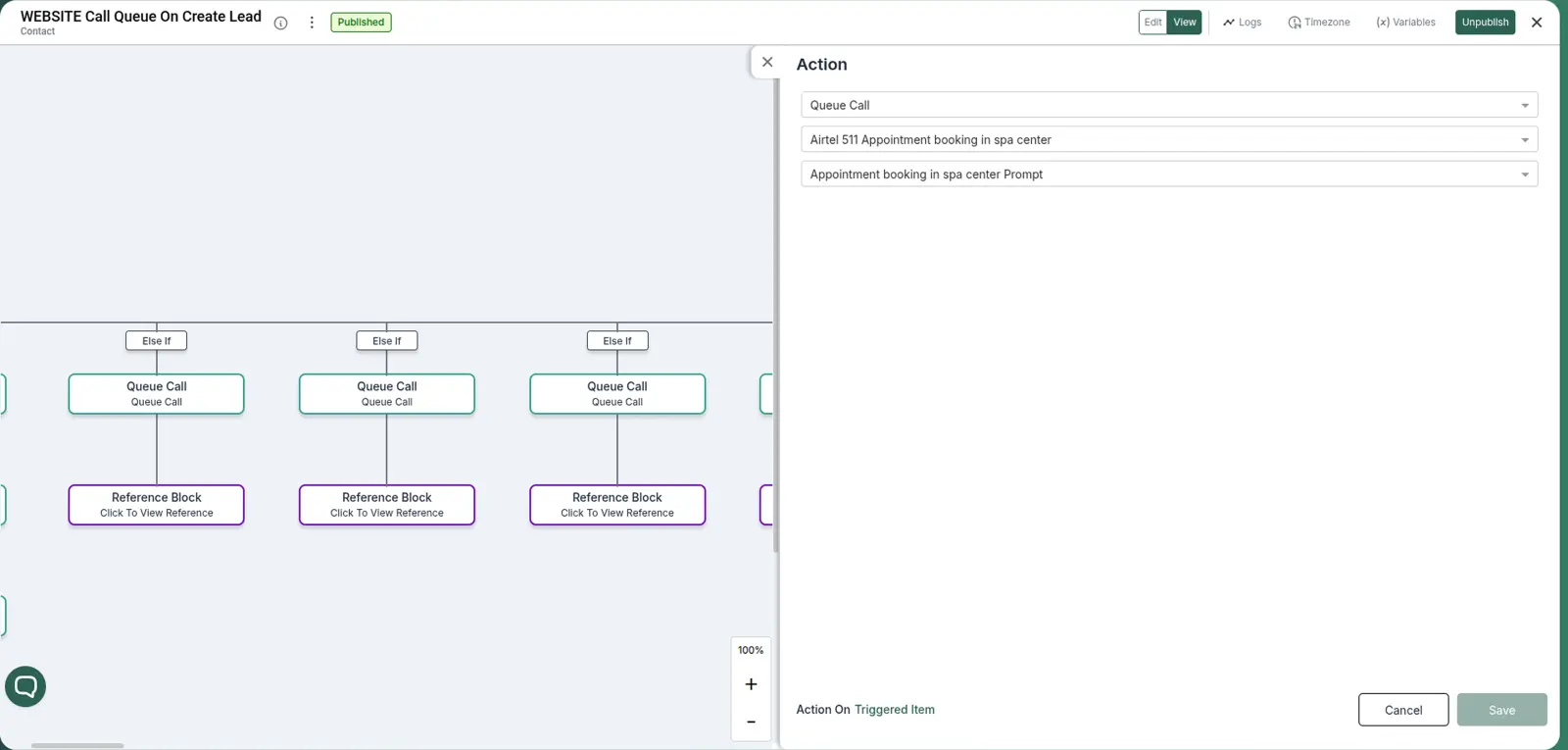
The screenshot illustrates the Queue Call action that assigns the lead to an AI Call or Browser Call Queue. Each field is explained below:
- Queue Call – The selected action type. This tells the system to place the customer in a call queue managed by your AI bot or browser calling setup.
- Select Browser Calling Channel – Choose the Browser Calling Channel you created earlier (e.g., “Airtel 511 Appointment Booking in Spa Center”). This determines which AI calling line will make the call.
- Select AI Prompt / Bot – Choose the prompt or AI Assistant that will handle the call. Example: “Appointment Booking in Spa Center Prompt”.
Once the Queue Call action is added, every lead entering this automation will automatically be placed in the calling queue and the AI bot will start the conversation.
Step 4: Save & Publish
- Click Save to store your automation settings.
- Click Publish to activate the automation.
After publishing, your AI Calling workflow will run automatically whenever the trigger conditions are met.
Conclusion: Launch Reliable AI Calling with Pronnel
You have now seen how to set up AI Calling end to end in Pronnel—from buying plan to creating a new Chat Bot, attaching knowledge, and connecting to channels.
With this foundation, you can roll out AI-powered inbound and outbound calls that reduce manual workload, respond instantly, and still escalate seamlessly to your team when needed.
Next step: create or open your first AI calling project in Pronnel and follow this checklist to go from idea to production-ready AI phone agent.
Note: Features and options may evolve over time. Always refer to the latest in-product help or contact support if you do not see the same options described in this tutorial.
Frequently Asked Questions About Pronnel AI Calling Setup
What is AI Calling in Pronnel?
AI Calling allows you to make automated inbound and outbound calls using AI bots. These bots can speak naturally, book appointments, collect information, qualify leads, and handle customer queries without human intervention.
What is a “Queue Call” action in automation?
The Queue Call action places a contact or lead into a calling queue. Once queued, the system automatically triggers the selected AI Call / Chatbot using your configured calling channel (Browser, SIP, or Twilio).
Do I need to create a channel before setting up AI Calling automation?
Yes. You must first create a Calling Channel (Browser, SIP, or Twilio) and link it with an AI Bot. Only then can you use the Queue Call action inside automations.
What are the different types of calling channels supported by Pronnel?
Pronnel supports three main calling channels:
- Browser Calling Channel
- SIP Calling Channel
- Twilio Calling Channel
Each channel can be linked with an AI bot for automated conversations.
What is an AI Prompt / AI Call Bot?
An AI Prompt or AI Call Bot defines how your AI agent will talk. It includes the personality of the bot, the instructions or script, the call purpose, and the allowed actions (booking, answering queries, etc.). You select this inside the channel configuration and automation step.
Can I use different AI bots for different automations?
Yes. You can assign different AI bots to different calling channels, different automations, and different use cases such as sales, appointment booking, support, or follow-ups.
Why is the Queue Call not triggering the call?
Common reasons include:
- The channel is not enabled.
- No AI bot is selected in the channel settings.
- The mobile number is missing or invalid.
- The automation trigger conditions are not met.
- For SIP/Twilio, gateway credentials are incorrect.
- For Browser Calling, allowed domains are not added.
Why is my browser calling not working?
Check the following:
- The domain where you are embedding the call widget is added under Allowed Domains.
- The generated HTML widget is copied correctly into your website.
- Microphone permission is granted in the browser.
Can AI handle incoming calls automatically?
Yes. When Incoming is enabled in the channel and an AI agent (prompt/bot) is attached, the AI bot can answer incoming calls automatically.
Can I track what the AI bot said during the call?
Yes. AI Calling logs can include the call summary, transcript, recording (if enabled), call status, and bot responses so you can review and audit each conversation.