Twilio Integration with Pronnel - A Complete Guide
Attach Twilio threads or delivery dashboards to items and coordinate follow‑ups in context. This guide covers adding the app, linking views, and running reviews with live status.
Steps To Follow
Step 1: Access App Integration in Pronnel
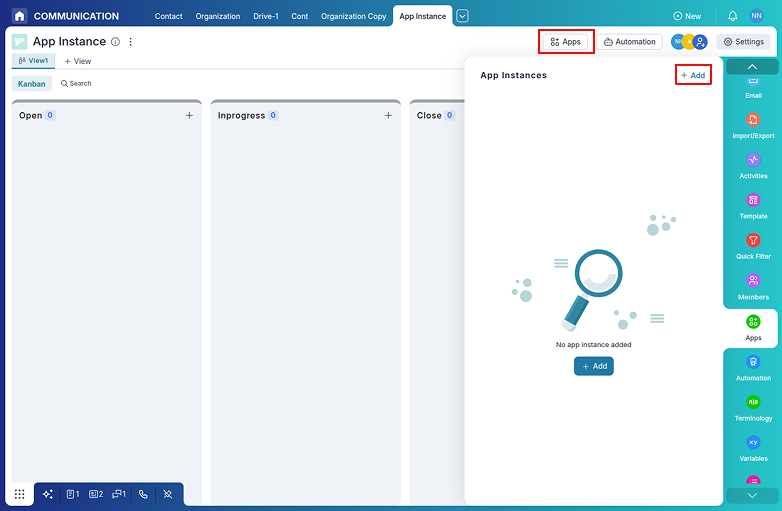
Open Pronnel, go to Apps, and select Twilio to begin setup.
Step 2: Connect Your Twilio Account
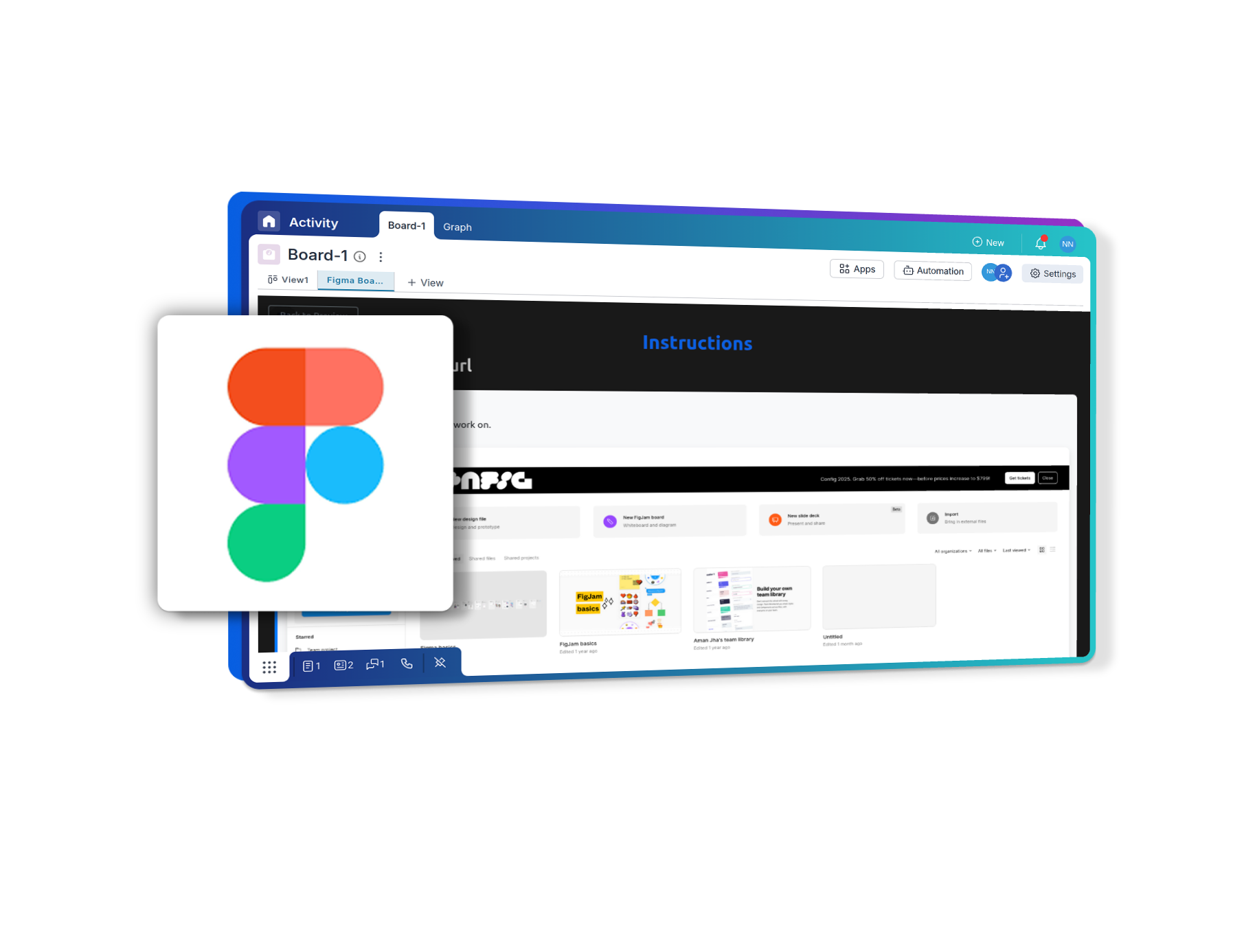
Choose a Private or Shared instance and authorize access for viewing WhatsApp/SMS threads and delivery dashboards.
Step 3: Add Twilio in a View
Create a new view and add the Twilio app. Select the relevant conversation or delivery view to display in context.
Step 4: Attach Twilio to Items
Attach specific thread or dashboard links to related Pronnel items so assignees can review status and next steps quickly.
Step 5: Run Reviews in Context
Use read-only embedded views in stand‑ups and reviews so stakeholders see the latest delivery and conversation status without switching tools.
Conclusion
Keep Twilio messaging and delivery visible in Pronnel to align teams and speed up responses—without duplicating data.
Frequently Asked Questions About Twilio Integration with Pronnel
Does Pronnel send messages?
No. Use Twilio to send. Pronnel centralizes context and coordination.
Is data copied to Pronnel?
No. Data remains in Twilio. Pronnel embeds and references for context.
Are permissions enforced?
Yes. Viewing respects Twilio access and Pronnel workspace controls.