How to Connect WhatsApp Account in Pronnel using Login with Facebook and Manual Setup
Connecting your WhatsApp Business account to Pronnel lets your team send and receive WhatsApp messages, run automations, chatbots and broadcasts, and keep every conversation linked to the right contact, all from inside your board. Pronnel gives you two ways to connect: Login with Facebook, a guided flow where Meta creates and links everything for you, and Manual Setup, where you paste the credentials of a WhatsApp Cloud API app you have already configured in Meta. This guide walks you through both.
Before You Begin
Keep the following ready so the setup goes smoothly:
- A Facebook account that is an admin of your business, or permission to create a new Meta Business Portfolio.
- A phone number for WhatsApp. You can use either:
- a number you already use on the WhatsApp Business app. It keeps working on your phone and in Pronnel at the same time, and you just need the phone nearby to scan a QR code, or
- a new number that can receive an SMS or voice call for verification.
- Business details: your business name, website, email and country, plus a display name for WhatsApp that matches your brand.
- Pop-ups allowed for app.pronnel.com in your browser, because the Facebook login opens in a pop-up window.
- For Manual Setup only: a Meta Developer App with the WhatsApp product added and a permanent access token (explained in Method 2).
Steps To Follow
Step 1: Open Channels in Settings
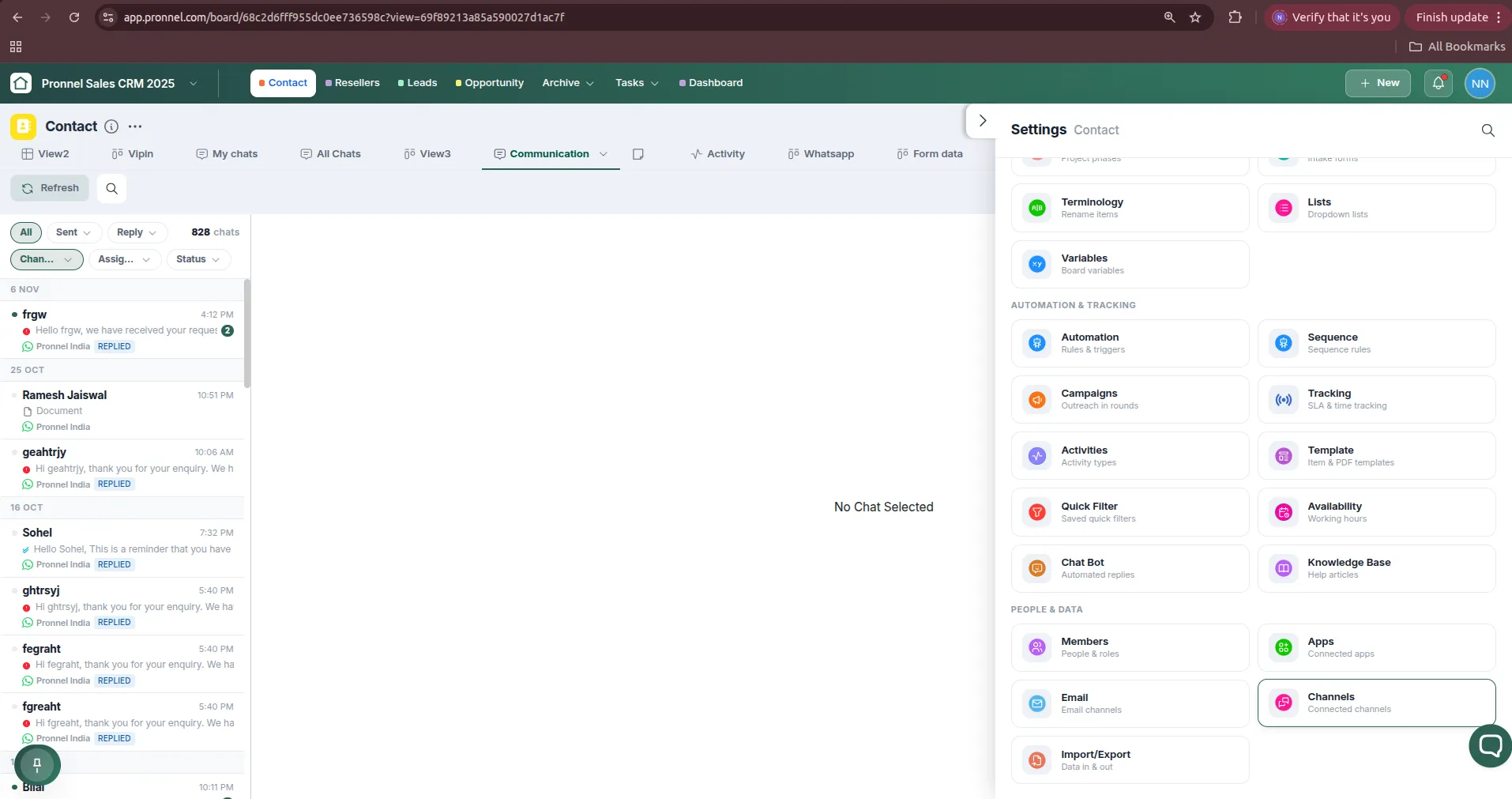
Open the board where you want to receive WhatsApp conversations, for example your Contact board. Open the Settings panel on the right side of the board and scroll down to the People & Data section. Click on Channels (Connected channels). This is where all your messaging and calling channels for the board are managed.
Step 2: Add a WhatsApp Channel
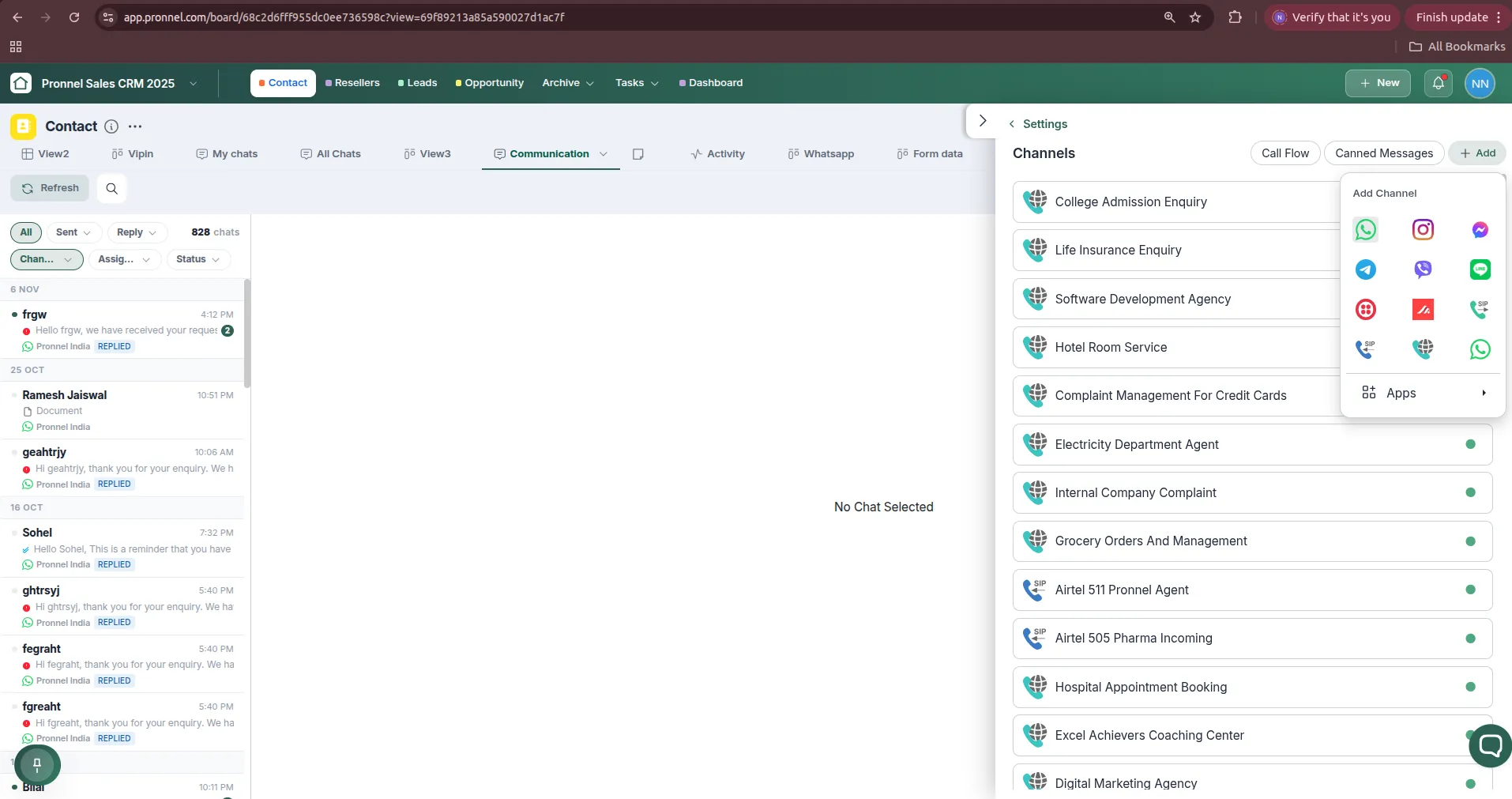
The Channels screen lists every channel already connected to the board. A green dot next to a channel means it is active. Click the + Add button at the top right to open the Add Channel menu, then click on the WhatsApp icon (the first icon in the list).
Step 3: Choose a Connection Method
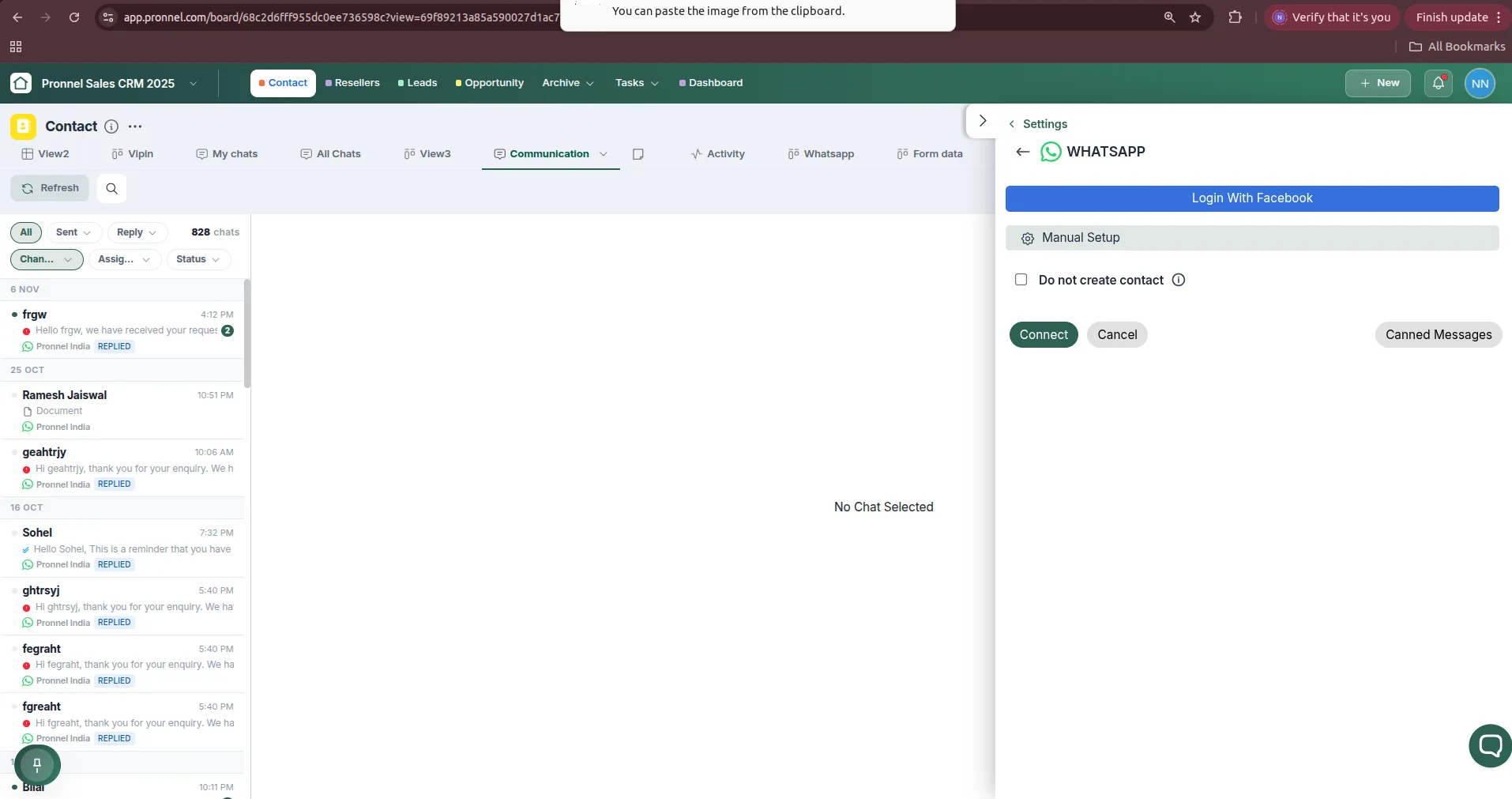
The WhatsApp setup panel opens with two options:
- Login with Facebook: connect through Meta's guided signup. Follow Method 1.
- Manual Setup: enter your WhatsApp Cloud API credentials yourself. Follow Method 2.
You will also see a Do not create contact checkbox. By default, Pronnel creates a new contact item on your board when an unknown number messages you. Tick this box if you do not want contacts to be created automatically. The Canned Messages button lets you prepare quick reply templates for this channel. See Canned Message Templates to learn more.
Method 1: Login with Facebook
This method uses Meta's Embedded Signup. You sign in with Facebook, and Meta walks you through creating (or selecting) your business, WhatsApp Business Account and phone number in one pop-up window. When it finishes, Pronnel receives the connection automatically.
1. Click Login with Facebook and sign in
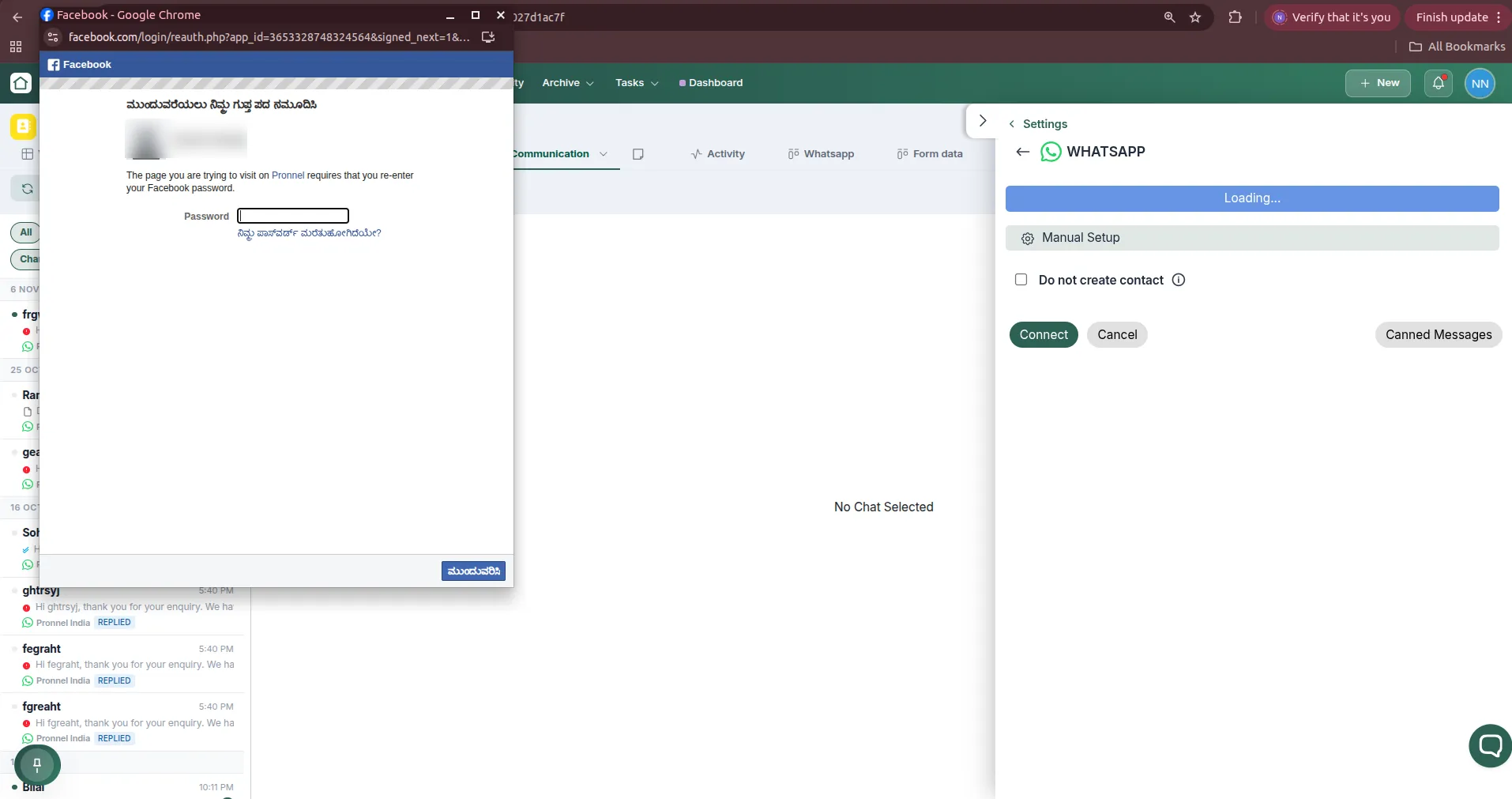
Click the blue Login With Facebook button. The button changes to Loading... and a Facebook pop-up window opens. Sign in with the Facebook account that manages your business. If you are already logged in, Facebook may ask you to re-enter your password to confirm it is you, as shown above. Enter it and click Continue.
If the pop-up does not appear, check the address bar for a blocked pop-up icon, allow pop-ups for app.pronnel.com and click Login With Facebook again.
2. Start the Meta setup
Meta shows a screen explaining that Pronnel will get access to your WhatsApp Business account. If you are logged in, it may show Continue as <your name>. Confirm it is the correct Facebook profile and click Get started (or Continue) to begin.
3. Select or create a Business Portfolio
Next, Meta asks which Business Portfolio (formerly Business Manager) the WhatsApp account belongs to.
- If you already have one, select it from the dropdown.
- If not, choose Create a business portfolio and fill in your Business name, Business email, Business website or profile page and Country.
Use your real, legal business details. Meta uses this information when reviewing your account, and mismatched details can delay approval. Click Next.
4. Select or create a WhatsApp Business Account
Meta now asks you to pick a WhatsApp Business Account (WABA):
- Select an existing WhatsApp Business Account from the list if you already have one in this portfolio, or
- Choose Create a new WhatsApp Business Account.
Click Next to continue.
5. Create the WhatsApp Business Profile
If you are creating a new account, fill in the details your customers will see on WhatsApp:
- WhatsApp Business Account name: an internal name to identify the account in Meta.
- WhatsApp Business display name: the name shown to customers in their chats. It should match your business name or brand, otherwise Meta may reject it.
- Time zone and Category (for example Education, Healthcare, Professional Services).
- Optionally, a business description and website.
Click Next.
6. Add and verify your phone number
Meta now asks which number to connect. Follow the option that matches your number:
Option A: Use your existing WhatsApp Business app number
- Choose the option to connect your existing WhatsApp Business app and enter the number with its country code.
- Meta shows a QR code. On your phone, open the WhatsApp Business app and scan it. If the app asks you to confirm, follow its prompt.
- Choose whether to share your chat history with Pronnel, then confirm.
Your number stays active in the WhatsApp Business app on your phone. Messages sent and received from either the app or Pronnel stay in sync.
Option B: Use a new number
- Enter the phone number with the correct country code.
- Choose how you want to receive the verification code, Text message (SMS) or Phone call, and click Next.
- Enter the 6-digit code you receive and click Next to verify the number.
7. Review permissions and finish
Meta shows a summary of the access Pronnel is requesting, such as managing your WhatsApp Business Account and sending and receiving messages. Review it and click Confirm. After a few seconds you will see a success screen saying your account is connected. Click Finish. The pop-up closes and you return to Pronnel.
8. Connect the channel in Pronnel
Back in the WhatsApp setup panel, decide whether to tick Do not create contact, then click the Connect button. Your WhatsApp number now appears in the Channels list with a green dot, which means it is live. Messages sent to this number will show up in the board's Communication view.
Method 2: Manual Setup
Use this method if you already have a WhatsApp Cloud API app in the Meta Developer portal, or if your organisation manages Meta apps centrally and you cannot use the Facebook login pop-up.
1. Open Manual Setup
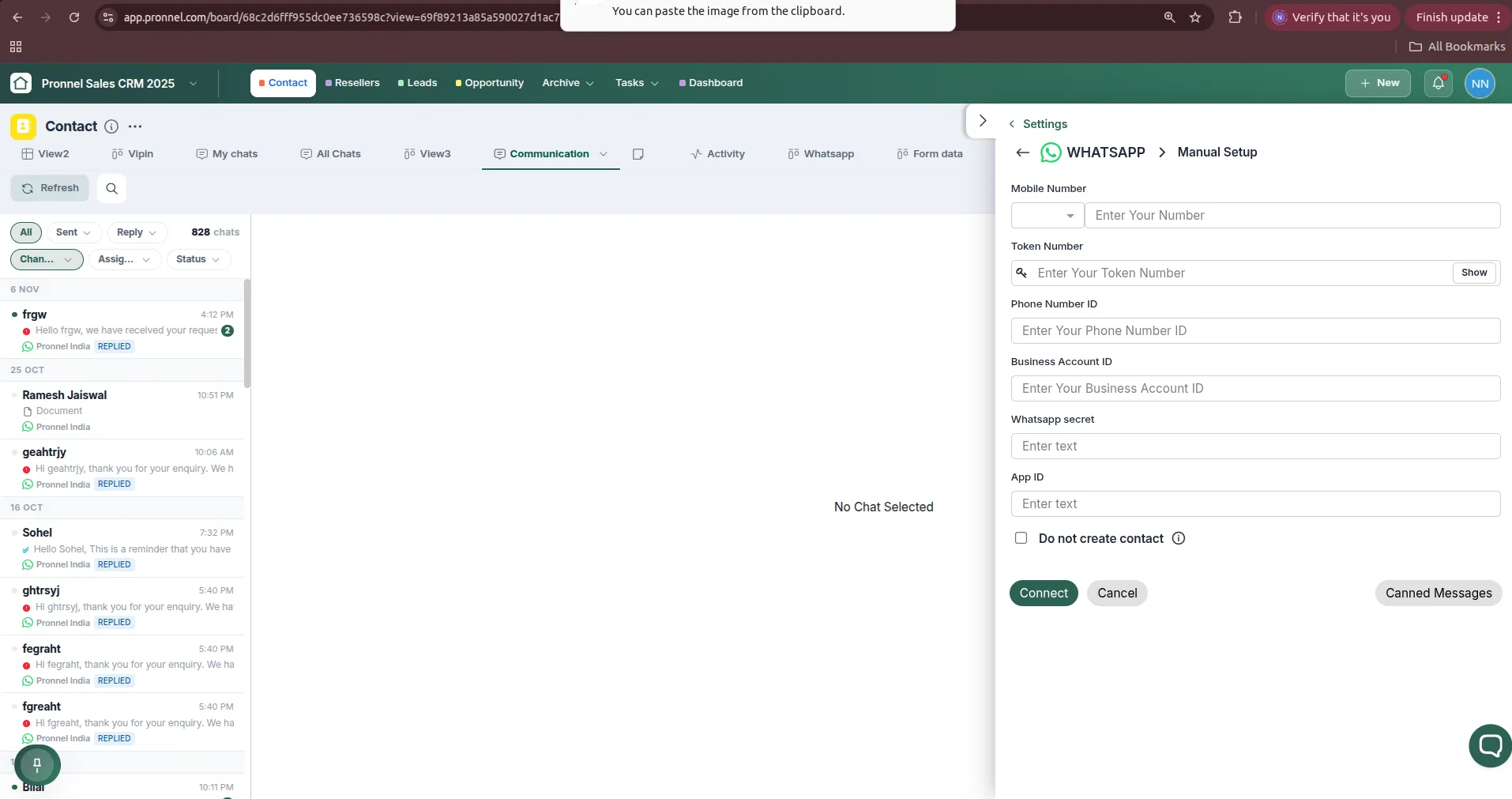
On the WhatsApp setup panel (Step 3), click Manual Setup. A form opens asking for your Mobile Number, Token Number, Phone Number ID, Business Account ID, WhatsApp secret and App ID.
2. Collect your credentials from Meta
Log in to developers.facebook.com, open your app (with the WhatsApp product added) and collect the following values:
| Pronnel field | Where to find it in Meta |
|---|---|
| Mobile Number | The WhatsApp phone number registered in your app. Select the country code from the dropdown and enter the number without the code. |
| Token Number | A permanent access token. Go to Meta Business Settings → Users → System users, create (or select) a system user, assign your app and WhatsApp Business Account to it, then click Generate new token with the whatsapp_business_messaging and whatsapp_business_management permissions. Do not use the temporary 24-hour token from the API Setup page, because it expires and the channel will stop working. |
| Phone Number ID | App dashboard → WhatsApp → API Setup, shown under the selected "From" phone number. |
| Business Account ID | App dashboard → WhatsApp → API Setup, shown as WhatsApp Business Account ID. |
| WhatsApp secret | App dashboard → App settings → Basic → App secret (click Show and confirm your password). |
| App ID | App dashboard → App settings → Basic → App ID (also shown at the top of the dashboard). |
3. Fill in the fields and connect
Paste each value into the matching field in Pronnel. Use the Show button next to the Token Number field to check that the token was pasted completely, with no extra spaces at the start or end. Tick Do not create contact if needed, then click Connect. When the details are correct, the WhatsApp channel appears in your Channels list with a green dot. Click Cancel at any time to go back without saving.
After Connecting
Once your WhatsApp channel is live, you can:
- Create WhatsApp templates and get them approved by Meta.
- Reply to customers from the Communication view and see each chat linked to its contact.
- Save time with Canned Messages.
- Answer common questions automatically with a chatbot on the channel.
- Send follow-ups with automation sequences in channels.
- Message many contacts at once with a WhatsApp broadcast, from your Contact board or a saved list.
Troubleshooting
- Stuck on "Loading..." / no pop-up: Your browser blocked the pop-up. Allow pop-ups for app.pronnel.com and click Login With Facebook again.
- Phone number cannot be verified: If the number is already on the WhatsApp Business app, use the "connect existing WhatsApp Business app" option and scan the QR code instead of requesting an SMS code. If the number is on personal WhatsApp, switch it to the WhatsApp Business app first. For a new number that cannot receive SMS, choose the Phone call option.
- QR code does not scan: Update the WhatsApp Business app to the latest version and scan the code from inside the app, not with the phone camera.
- Display name rejected: Meta requires the display name to match your business. Edit it in WhatsApp Manager and resubmit.
- Manual Setup connects but messages stop after a day: You used a temporary access token. Generate a permanent System User token and update the channel.
- Invalid credentials error: Double-check that the Phone Number ID and Business Account ID belong to the same app as the token, and that there are no extra spaces in any field.
Conclusion
Whether you choose the guided Login with Facebook flow or Manual Setup with your own Cloud API credentials, connecting WhatsApp to Pronnel brings your customer conversations into the same place as your contacts, deals and automations. Next, learn how to create a WhatsApp template and send a broadcast. For any further help, feel free to contact Pronnel support.
Frequently Asked Questions About Connecting WhatsApp Account in Pronnel
What is the difference between Login with Facebook and Manual Setup for WhatsApp in Pronnel?
Login with Facebook uses Meta's guided Embedded Signup, which creates or selects your Business Portfolio, WhatsApp Business Account and phone number for you in a pop-up. Manual Setup is for users who already have a WhatsApp Cloud API app in Meta and want to enter the Token, Phone Number ID, Business Account ID, App Secret and App ID themselves.
Can I keep using my WhatsApp number on my phone after connecting it to Pronnel?
Yes, if the number is on the WhatsApp Business app. During Login with Facebook, choose to connect your existing WhatsApp Business app and scan the QR code. The number then works in both the app and Pronnel, and messages stay in sync. Numbers on regular personal WhatsApp must be switched to the WhatsApp Business app first.
Do I need a Meta Business Portfolio to connect WhatsApp?
Yes. Every WhatsApp Business Account belongs to a Meta Business Portfolio. If you do not have one, you can create it during the Login with Facebook flow.
Why does the Login with Facebook button stay on Loading?
The Facebook login opens in a pop-up window. If your browser blocks pop-ups, the window never appears. Allow pop-ups for app.pronnel.com and try again.
Which access token should I use for Manual Setup?
Use a permanent System User access token generated from Meta Business Settings with the whatsapp_business_messaging and whatsapp_business_management permissions. The temporary token on the API Setup page expires after 24 hours.
Where do I find the Phone Number ID and WhatsApp Business Account ID?
In the Meta Developer dashboard, open your app and go to WhatsApp > API Setup. Both IDs are shown on that page.
What does the Do not create contact option do?
By default, Pronnel creates a new contact item when an unknown number messages you on WhatsApp. Ticking Do not create contact stops new contacts from being created automatically.
Can I connect more than one WhatsApp number to Pronnel?
Yes. Repeat the steps for each number. Each WhatsApp number is added as its own channel in the Channels list.
How do I know the WhatsApp channel is connected?
After clicking Connect, the channel appears in Settings > Channels with a green dot next to it, and incoming WhatsApp messages start appearing in the Communication view.
Is it safe to share my WhatsApp token and app secret with Pronnel?
Enter them only in the Manual Setup form, where they are used to send and receive messages on your behalf. Never share them over chat or email. You can revoke or regenerate the token from Meta Business Settings at any time.