How to use MCP server URL in Claude.ai to create Pronnel workspace
By connecting the MCP URL with your Claude.ai, you can ask Claude to create a prompt or anything else directly, and it will be created in your Pronnel end AI chat. This guide shows you an example of how to make that connection efficiently.
Steps To Follow
Step 1: Copy URL and Add Custom Connector
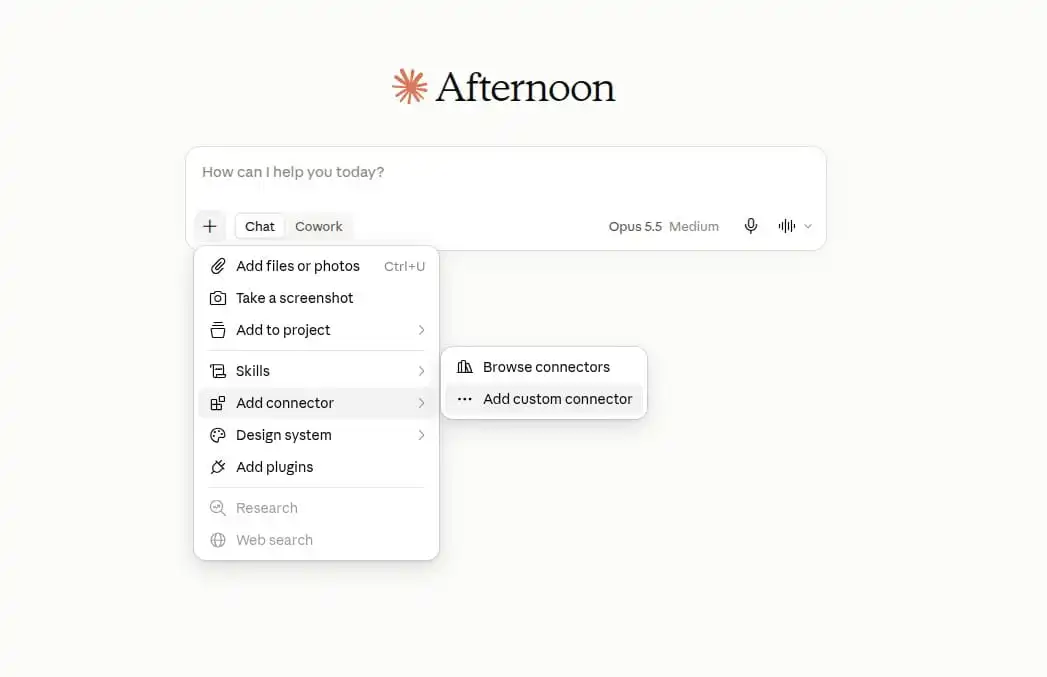
To begin the integration process, you need your unique MCP Server URL, which acts as the bridge between your Pronnel workspace and the AI. We have provided the universal Pronnel MCP URL for you: https://mcp.pronnel.com. Copy this URL to your clipboard. Next, open a new browser tab, log in to your Claude.ai account, and locate the + icon to add a new connection. From the dropdown menu, select Add Connector, followed by Add Custom Connector to initiate the setup.
Step 2: Provide Name and Paste URL
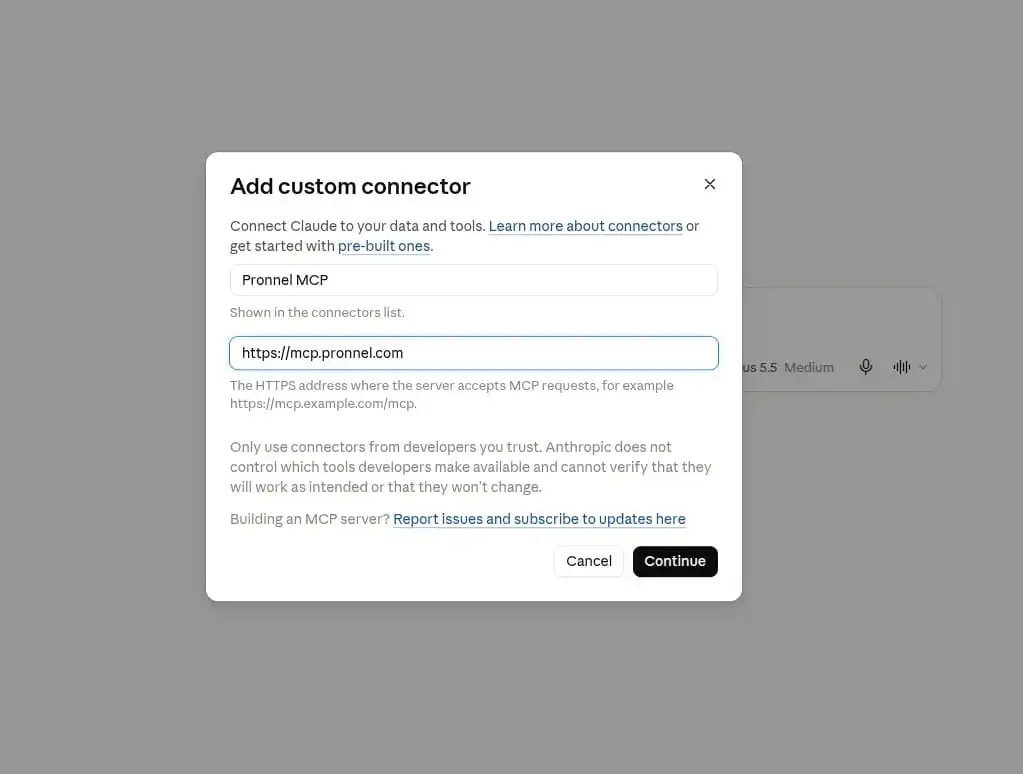
Upon selecting 'Add Custom Connector', a configuration pop-up window will appear on your screen. In this window, you need to provide a recognizable name for your new connector, such as 'Pronnel AI Integration', so you can easily identify it later. Below the name field, paste the MCP URL (https://mcp.pronnel.com) that you copied during the first step. Once both fields are filled out correctly, click on the Continue button to proceed to the authentication phase.
Step 3: Configure Authentication settings
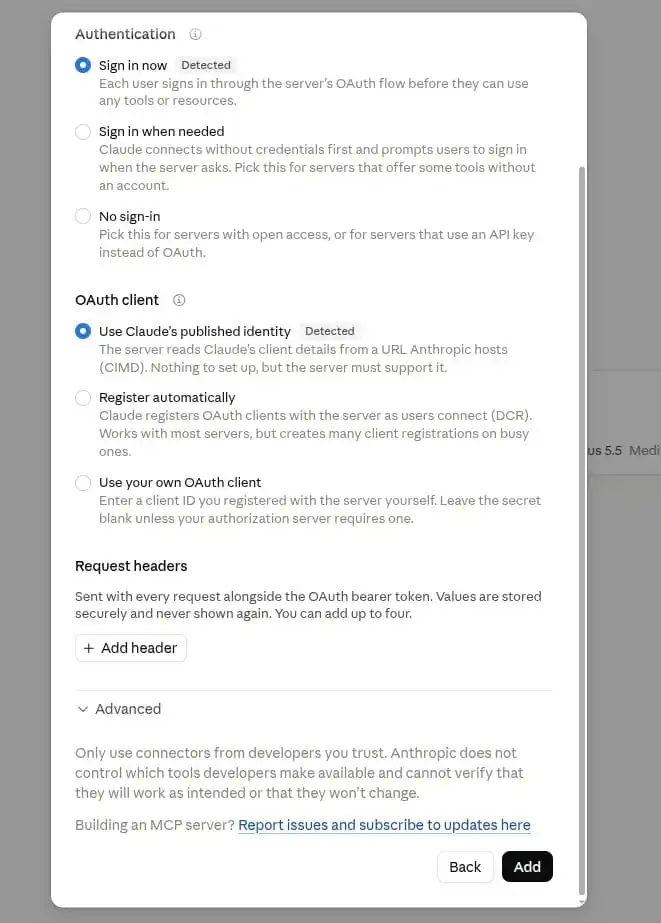
After clicking continue, Claude will present you with a secondary pop-up focused primarily on securing the connection. This section allows you to configure essential settings like Authentication methods and OAuth client details. You will securely link your Pronnel identity with Claude so they can communicate safely. Ensure that you enter the proper headers or tokens if required. Once all necessary security configurations are properly set, click on the Add button to save the configuration.
Step 4 : Confirm Authorization
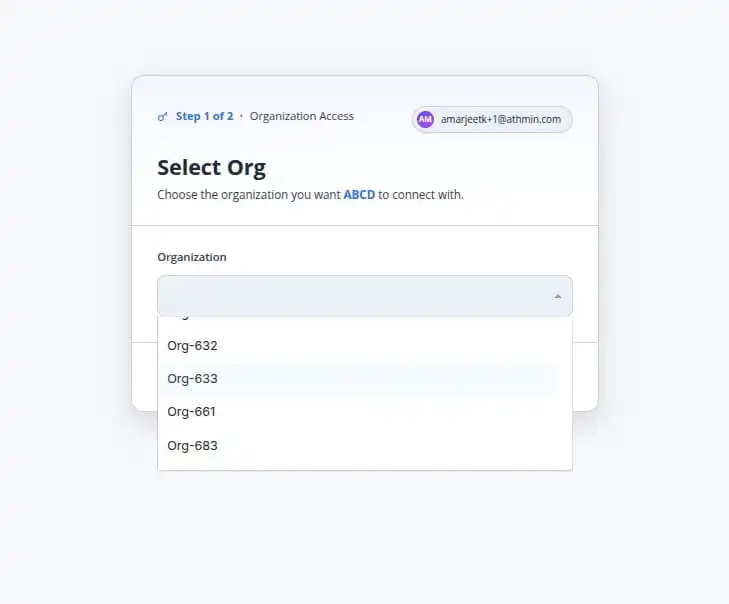
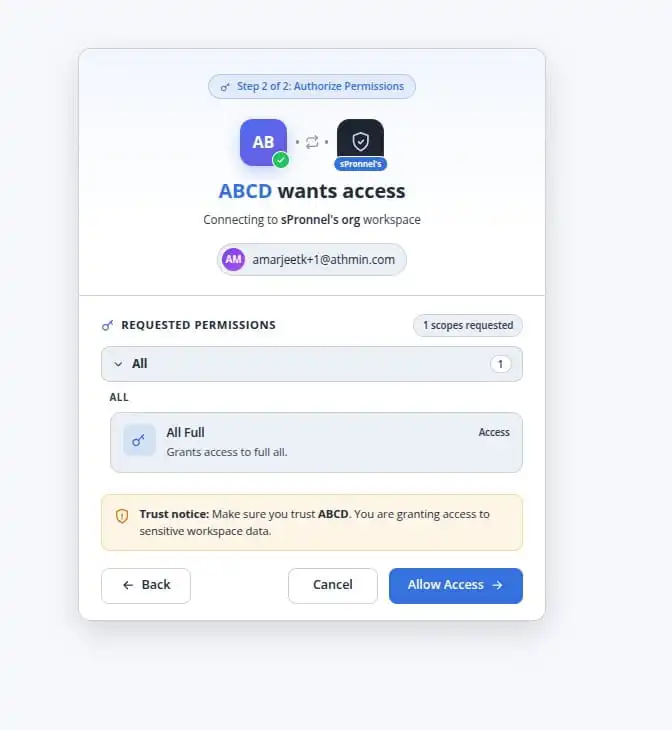
To finalize the OAuth authorization, switch over to your Pronnel dashboard and open the relevant App. Copy the generated OAuth authorization URL and paste it into a new browser tab to load the consent screen. On this screen, verify and select your Organization from the provided list. Carefully review the requested permissions that Claude.ai is asking for. Once you are satisfied that the permissions are correct, click on the Allow Access button to grant the required access.
Step 5 : Successful Connection and Actions
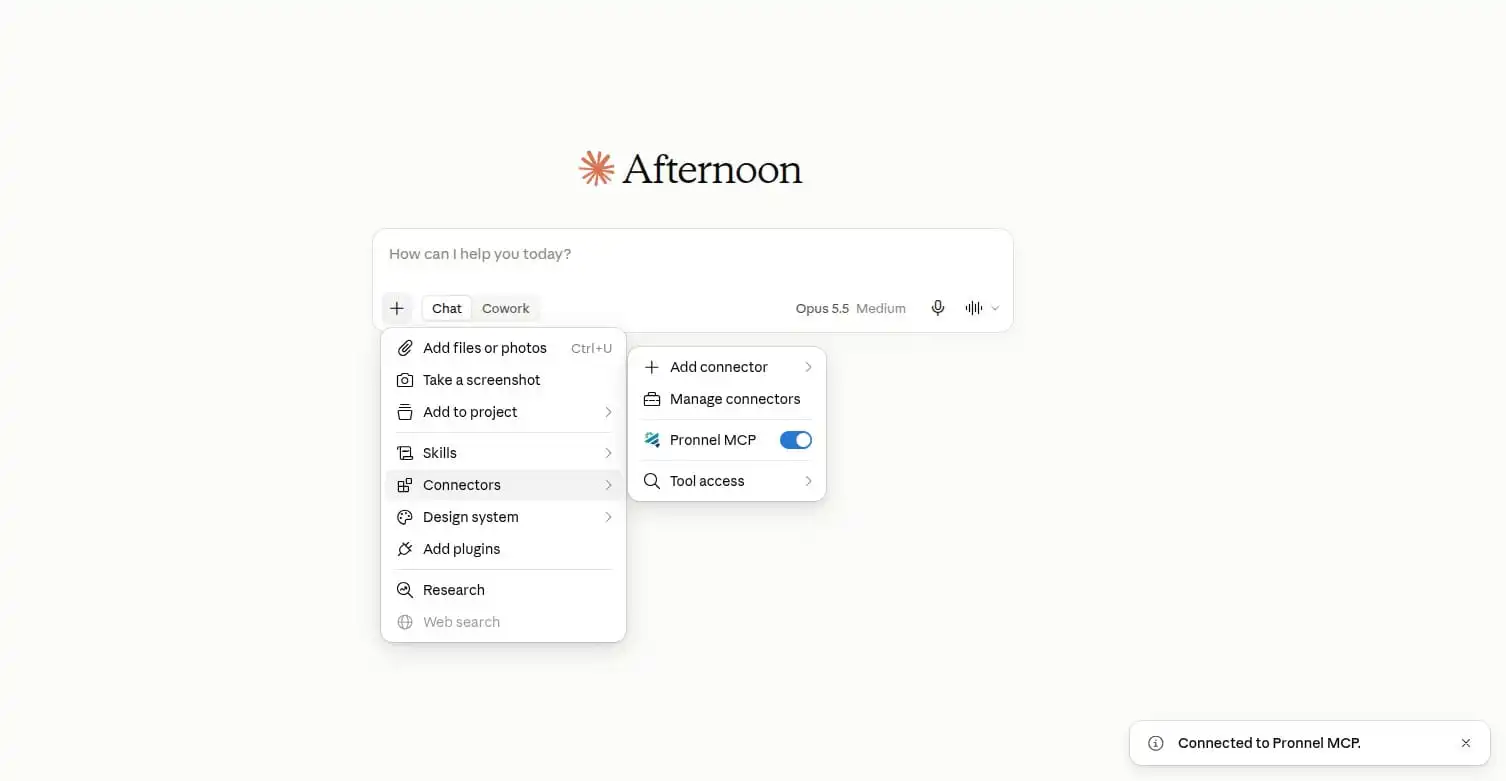
Congratulations! Upon granting access, your connection will be successfully established, and your Claude interface will indicate that the MCP is actively connected. You are now fully equipped to leverage AI capabilities right from Claude. You can seamlessly perform actions such as creating advanced prompts, executing tasks, or querying data directly from Claude.ai, and all your actions will automatically synchronize and reflect within your Pronnel AI chat interface in real-time.
Conclusion
Integrating Pronnel with Claude.ai through the MCP Server URL enhances your AI's context and capabilities directly within your workspace. For any further assistance, feel free to contact Pronnel support or consult our documentation.
Frequently Asked Questions About Using MCP Server URL in Claude.ai
What is an MCP Server URL and why do I need it for Claude.ai?
An MCP (Model Context Protocol) Server URL allows you to connect external tools like Pronnel to Claude.ai. This integration enables Claude to securely interact with your Pronnel workspace and perform actions such as creating prompts or retrieving context directly.
How does integrating Pronnel with Claude.ai through MCP improve my workflow?
Integrating Pronnel with Claude.ai streamlines your workflow by allowing you to issue commands to Claude that instantly execute within Pronnel. You can generate ideas, create tasks, and manage AI chats in Pronnel without leaving the Claude interface.
Where can I find my Pronnel MCP Server URL to connect with Claude.ai?
You can find your unique Pronnel MCP Server URL within your Pronnel workspace settings under the Integrations or Developer section. The URL typically follows the format https://mcp.pronnel.com.
Is it safe to connect Claude.ai to my Pronnel workspace using an MCP URL?
Yes, connecting Claude to Pronnel via the MCP URL is safe. The connection uses secure authentication protocols, including OAuth, to ensure that only authorized actions are performed and your workspace data remains protected.
Can I create Pronnel prompts directly from Claude.ai after connecting?
Absolutely! Once the MCP connection is successfully established, you can ask Claude to create prompts, tasks, or other items, and they will automatically be created in your Pronnel end AI chat.
Do I need programming skills to set up the Claude.ai custom connector?
No programming skills are required. Setting up the custom connector involves a simple process of clicking "Add Custom Connector", pasting the Pronnel MCP URL, and filling out the necessary authentication details in the Claude UI.
How do I configure OAuth client details for the Pronnel MCP in Claude?
During the setup, Claude will prompt you with an Authentication pop-up. You will need to input the OAuth client credentials provided by Pronnel to authorize the secure connection.
What happens if the MCP server connection to Pronnel fails?
If the connection fails, verify that you copied the correct MCP URL (https://mcp.pronnel.com) and entered the right authentication details. You can also re-authorize the connection by generating a new OAuth token in Pronnel.
Can multiple users in a Pronnel workspace use the same MCP connection?
Yes, each user can set up their own custom connector in their personal Claude.ai account using the Pronnel MCP URL and authenticate with their individual Pronnel credentials to manage their tasks.
How do I authorize the connection between Pronnel and Claude.ai?
To authorize the connection, copy the OAuth URL from the Pronnel App to a new browser tab, select your Organization, check the requested permissions, and click on "Allow Access" as outlined in the setup steps.