How to Create a WhatsApp Template and Send Broadcast Messages in Pronnel
Once your WhatsApp number is connected to Pronnel, the next step is to start messaging your customers. WhatsApp only allows businesses to start a conversation, or message someone who has not replied in the last 24 hours, using a template approved by Meta. This guide shows you how to create a WhatsApp template from Pronnel, submit it for approval, and then use it to send a broadcast to many contacts at once, either from your board or from a saved list.
Part 1: Create a WhatsApp Template
Step 1: Open your WhatsApp channel and click Manage Templates
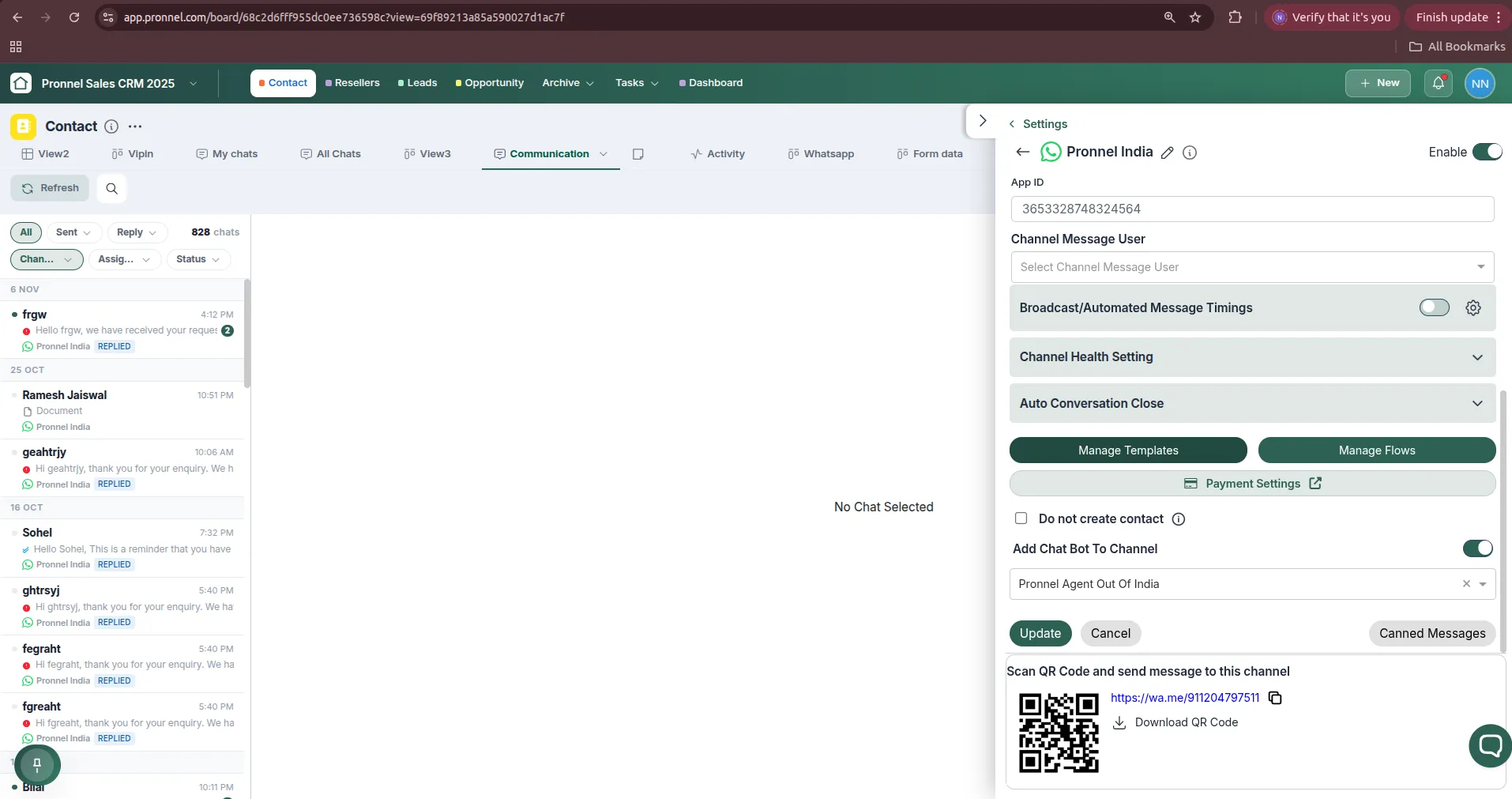
Go to Settings → Channels on your board and click on your connected WhatsApp channel (in this example, Pronnel India). The channel settings open, showing your App ID, broadcast timings, channel health, chatbot and other options. At the bottom you will also find a QR code and a wa.me link that customers can use to message this number.
Click the Manage Templates button to open WhatsApp Template Management.
Step 2: Choose the template category and type
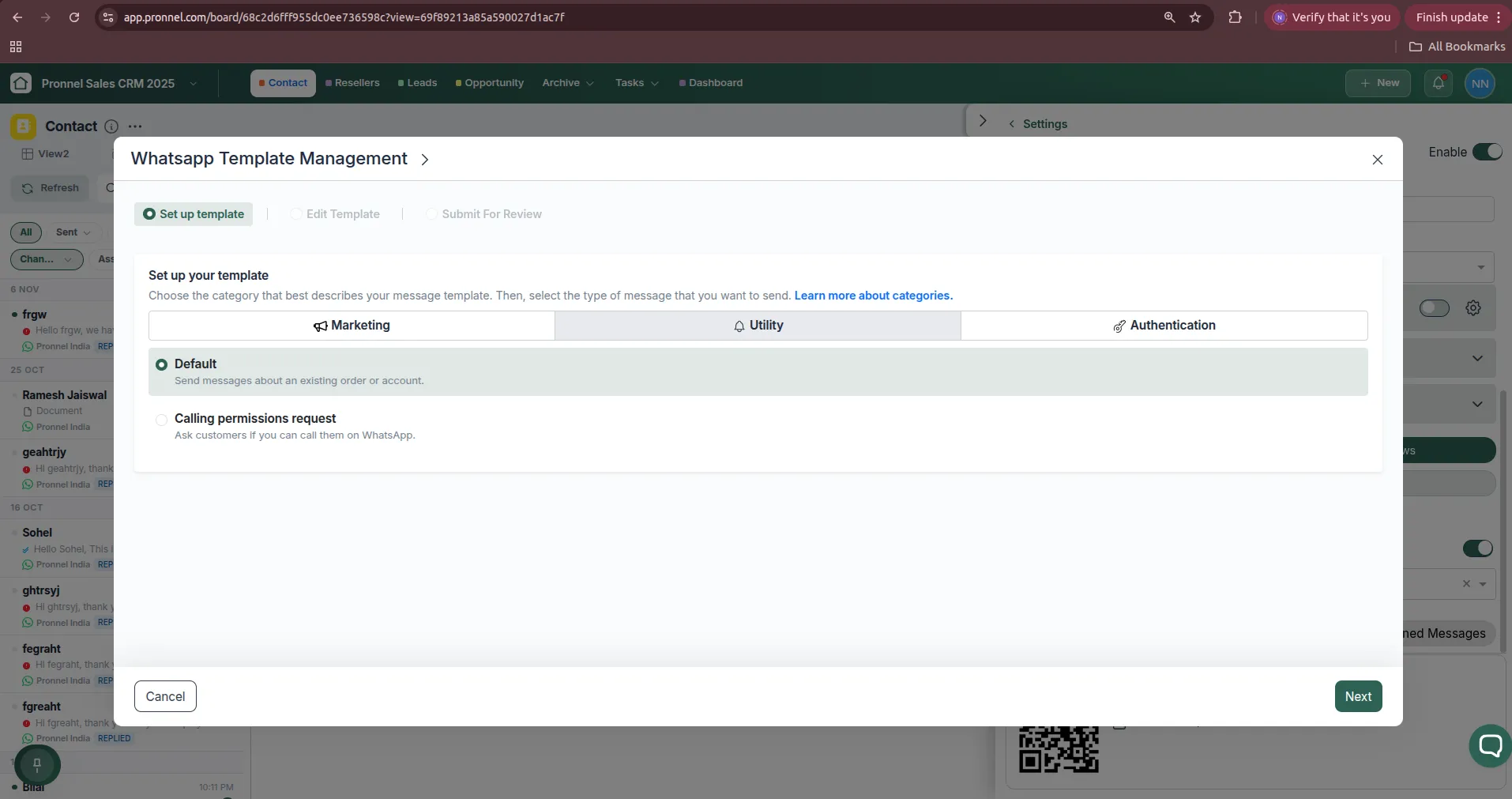
The template builder has three stages: Set up template, Edit Template and Submit For Review. On the first stage, choose the category that best describes your message:
- Marketing: promotions, offers, product announcements, newsletters and re-engagement messages.
- Utility: messages about an existing order, booking or account, such as confirmations, reminders and updates. Under Utility you can pick Default or Calling permissions request (to ask customers if you can call them on WhatsApp).
- Authentication: one-time passwords (OTP) and login verification codes.
Pick the category and type, then click Next. Choosing the right category matters, because Meta can reject a template or change its category if the content does not match. Marketing and Utility messages are also priced differently.
Step 3: Add name, language and content
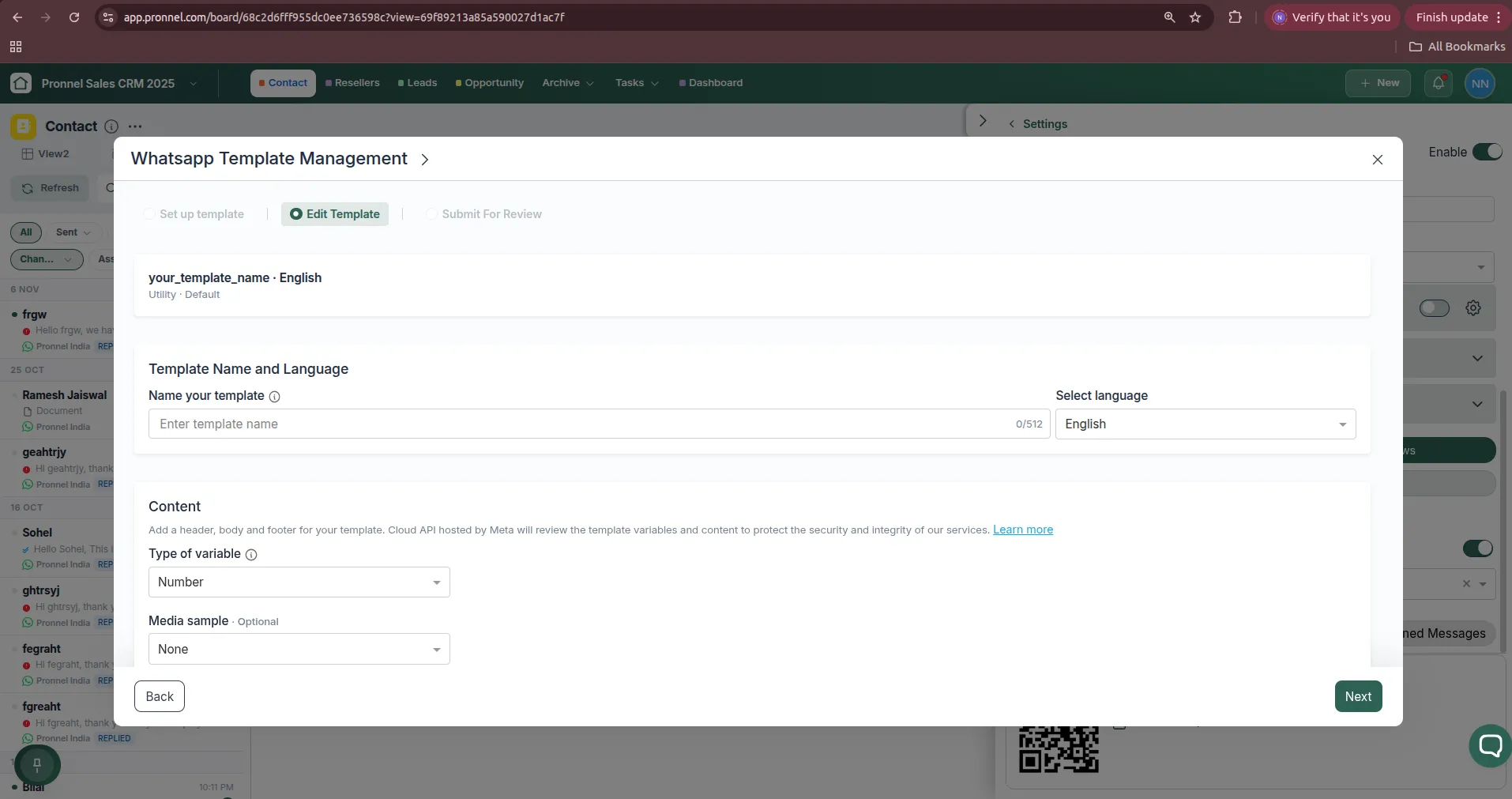
On the Edit Template stage, fill in the following:
- Name your template: use lowercase letters, numbers and underscores only, for example
demo_booking_reminderorprevious_client_new_offer. Pick a name your team will recognise later. - Select language: the language the message is written in. To send the same message in another language, create a separate template.
- Type of variable: choose Number to write variables as
{{1}},{{2}}, or a named type if you prefer descriptive variables. Variables are placeholders that get replaced with real values, such as the customer's name, when you send. - Media sample (optional): add an image, video or document header if your message needs one.
- Header, Body and Footer: write your message in the Body. Add variables where personal details should appear, for example "Hi {{1}}, your demo is booked for {{2}}." The header and footer are optional.
- Buttons (optional): add quick reply or call-to-action buttons such as "Visit website" or "Call us" if available.
Meta asks for a sample value for every variable so the reviewer can understand the message. Give realistic examples (such as "Rahul" for a name). Click Next when the content is ready.
Step 4: Submit for review
On the final stage, check the preview of your template and click Submit. The template is sent to Meta for review. Most templates are approved within minutes, but some can take up to 24 hours. Once approved, the template appears in the Pre-approved Messages list when you send a message or broadcast. If a template is rejected, edit the wording (often because the category does not match the content, or a variable is at the very start or end of the message) and submit it again.
Part 2: Send a Broadcast from the Contact Board
Step 1: Select contacts and click Broadcast
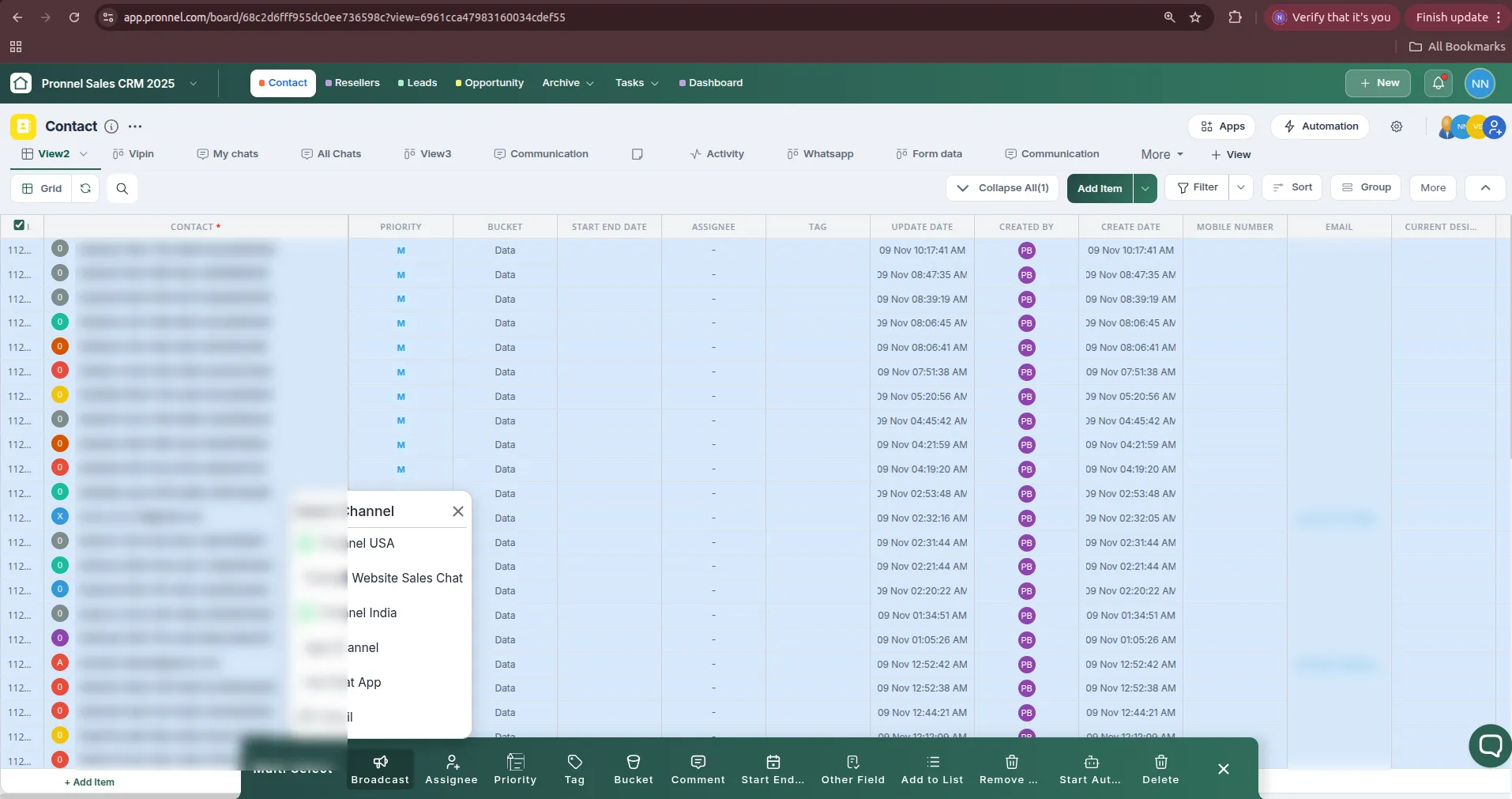
Open your Contact board in Grid view. Tick the checkbox next to each contact you want to message, or tick the checkbox in the header to select all. You can use Filter first to narrow down the contacts, for example by bucket or tag. When contacts are selected, the Multi Select bar appears at the bottom of the screen.
Click Broadcast. A Select Channel menu opens with every channel connected to the board. Choose the WhatsApp channel you want to send from, for example Pronnel India.
Step 2: Open Pre-approved Messages
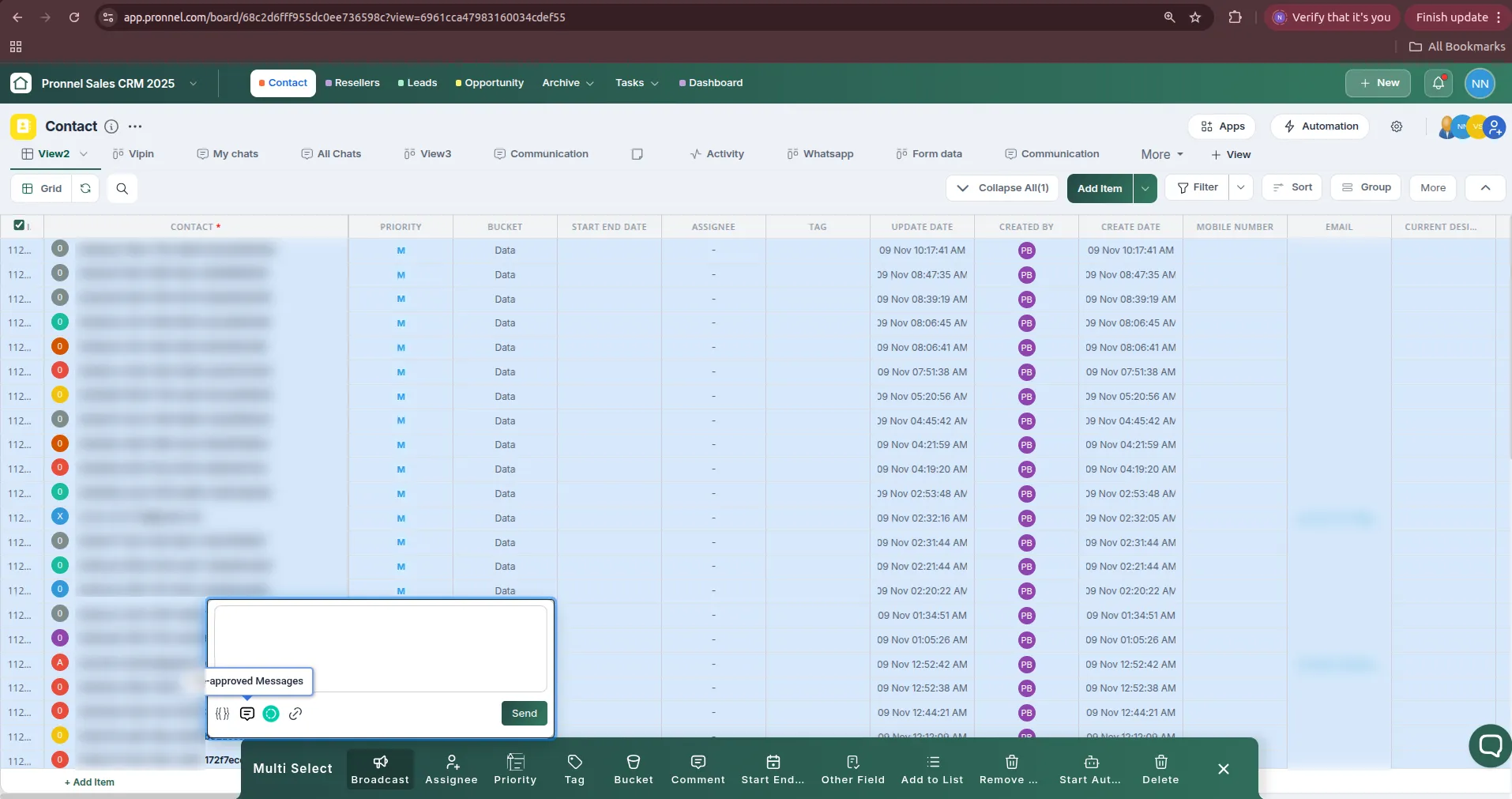
A message box opens. Because broadcasts usually go to people who have not messaged you in the last 24 hours, you need to send an approved template. Click the Pre-approved Messages icon (the message icon next to {{}}) at the bottom of the message box.
Step 3: Choose a template, fill variables and send
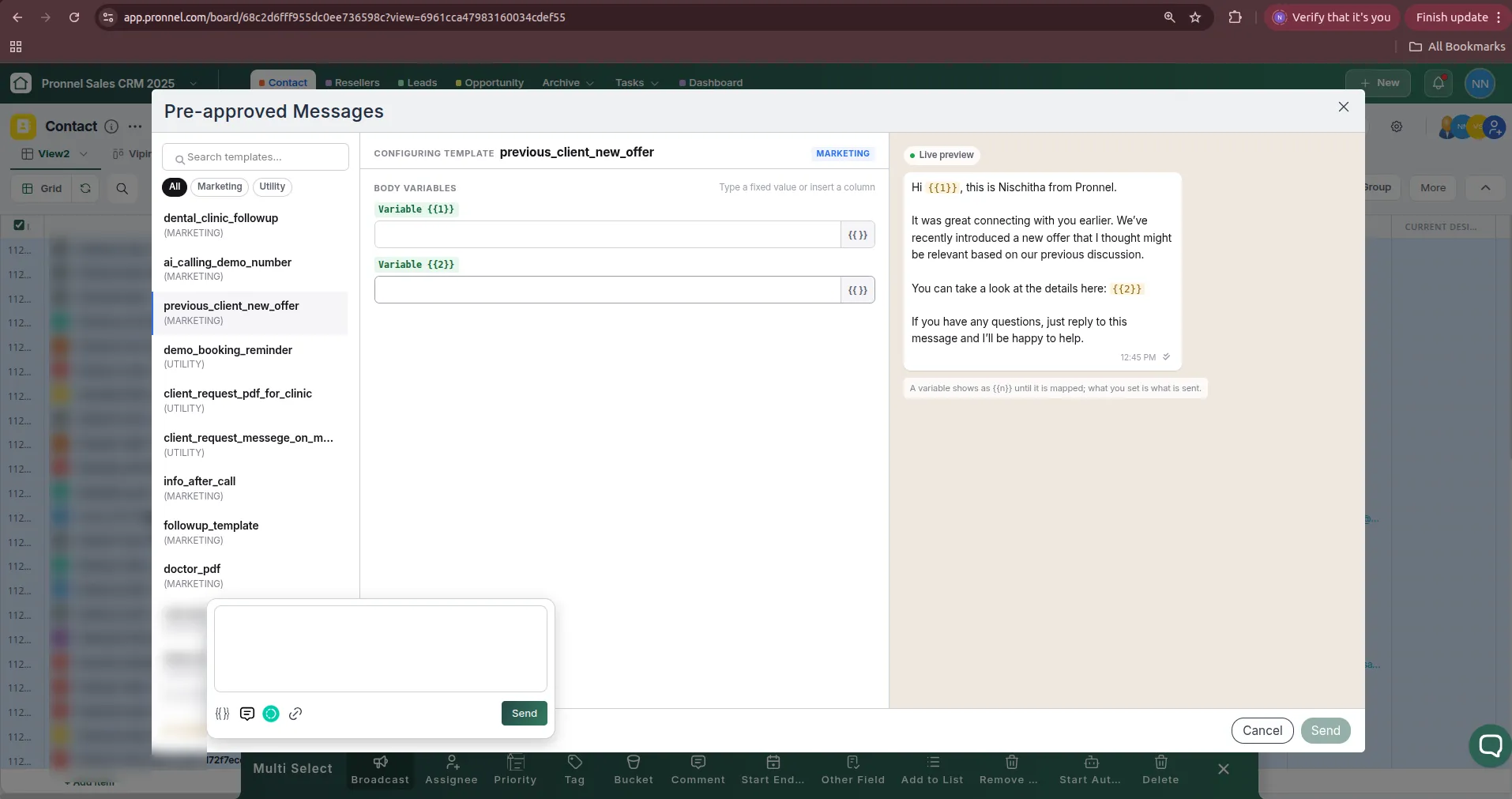
The Pre-approved Messages window lists all your approved templates. Use the search box or the Marketing / Utility filters to find the one you need, then click it.
- Under Body Variables, fill in a value for each variable. You can type a fixed value that is the same for everyone (such as a link), or click the
{{}}button to insert a column, such as the contact's name, so each person receives a personalised message. - Check the Live preview on the right. A variable shows as
{{n}}until it is mapped, and whatever you set is what will be sent.
When everything looks right, click Send. Pronnel sends the message to every selected contact, and each conversation appears in the Communication view so your team can follow up on replies.
Part 3: Send a Broadcast from a List
Lists let you save a group of contacts, such as "USA Calling 5th Jan25", and message the whole group again whenever you need. To learn how to create lists, see How to use lists with automation.
Step 1: Open Lists from Settings
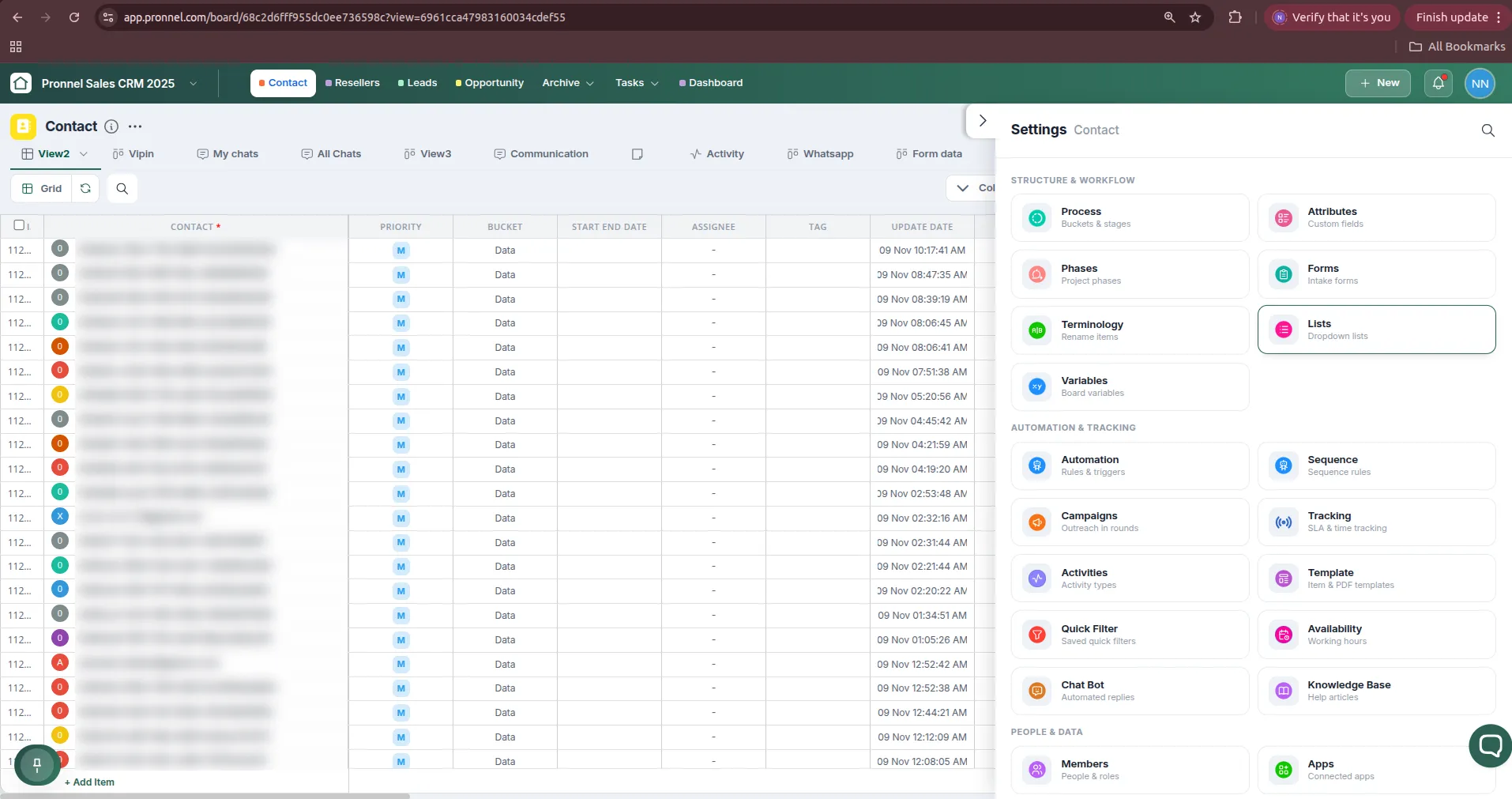
Open the Settings panel of your Contact board. Under Structure & Workflow, click on Lists. All saved lists for the board are shown here. Click on the list you want to message to open it.
Step 2: Select the list members and broadcast
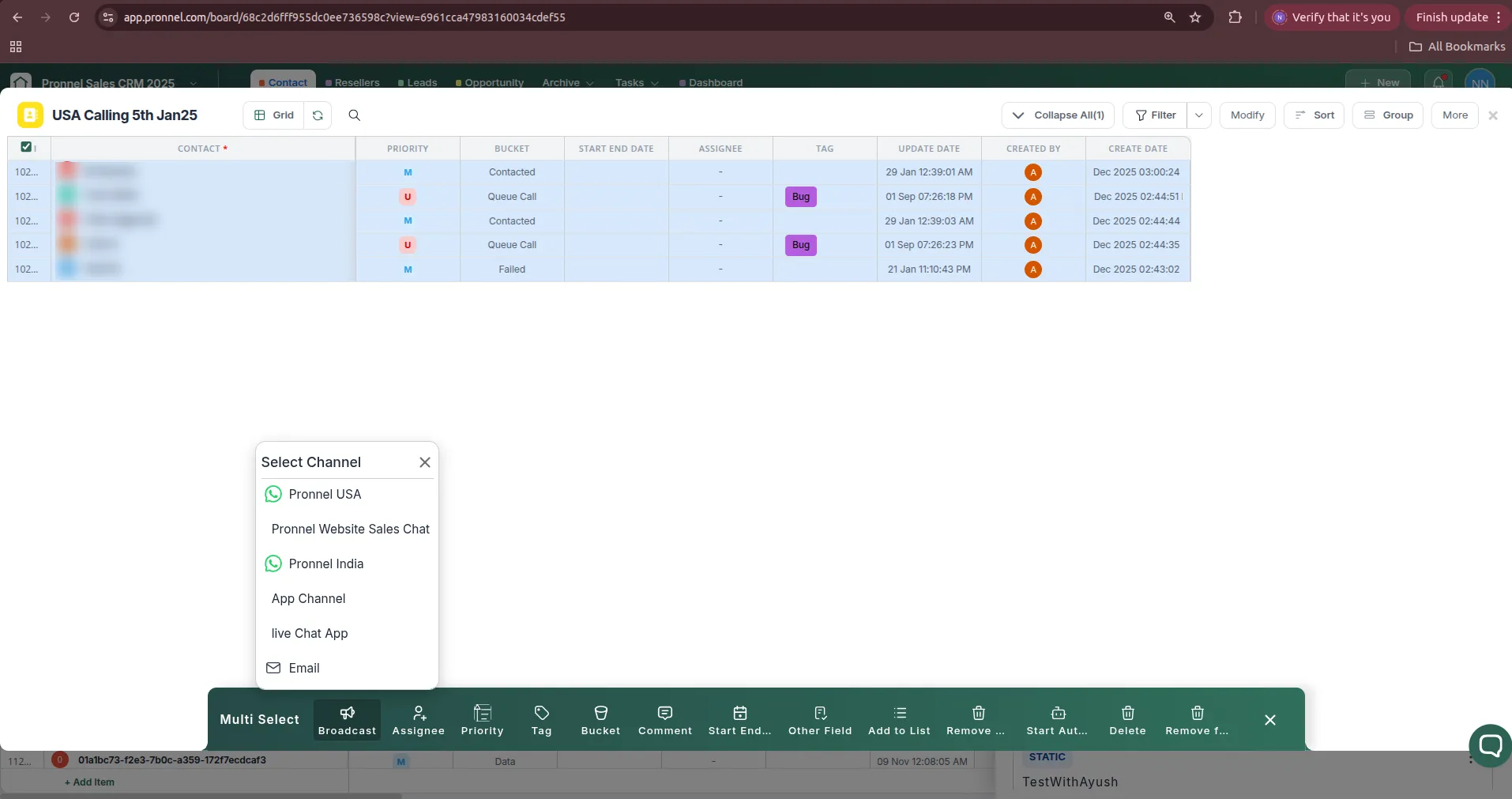
The list opens in its own grid showing only its contacts. Tick the header checkbox to select everyone in the list (or pick individual contacts), then click Broadcast in the Multi Select bar. Choose your WhatsApp channel from the Select Channel menu.
From here, the steps are the same as in Part 2: click the Pre-approved Messages icon, choose your template, map the variables and click Send.
Best Practices
- Only message people who opted in. Sending to people who did not agree to hear from you leads to blocks and reports, which lowers your number's quality rating and messaging limits.
- Personalise with variables. Messages that use the customer's name get better replies than generic ones.
- Test first. Send the broadcast to yourself or a teammate before sending it to a large group.
- Mind your sending limits. New numbers can only start conversations with a limited number of people per day. The limit grows as you send good-quality messages. Check the Channel Health Setting in your channel settings.
- Send at the right time. Use Broadcast/Automated Message Timings in the channel settings to make sure messages only go out during suitable hours.
- Automate follow-ups. Use automation sequences in channels or a chatbot to handle replies.
Conclusion
With approved WhatsApp templates and Pronnel's Broadcast option, you can reach hundreds of contacts with personalised messages in a few clicks, straight from your Contact board or from a saved list. Every reply lands back in Pronnel, linked to the right contact, so your team never loses track of a conversation. For any further help, feel free to contact Pronnel support.
Frequently Asked Questions About WhatsApp Templates and Broadcast in Pronnel
Why do I need a WhatsApp template to send a broadcast?
WhatsApp only lets businesses send free-form messages within 24 hours of the customer's last message. To start a new conversation or message someone outside that window, you must use a template approved by Meta.
How long does WhatsApp template approval take?
Most templates are approved within a few minutes. Some can take up to 24 hours. Approved templates appear under Pre-approved Messages in Pronnel.
What is the difference between Marketing, Utility and Authentication templates?
Marketing templates are for promotions and offers. Utility templates are for updates about an existing order, booking or account. Authentication templates are for one-time passwords. Meta prices each category differently and may change the category if the content does not match.
Why was my WhatsApp template rejected?
Common reasons include choosing the wrong category, placing a variable at the very start or end of the message, missing sample values, or content that breaks WhatsApp's commerce or business policies. Edit the template and submit it again.
How do I personalise a broadcast with each contact's name?
Add a variable like {{1}} in the template body. When sending, click the {{}} button next to that variable in Pre-approved Messages and insert the contact name column. Each contact will receive the message with their own name.
Can I send a WhatsApp broadcast to a saved list of contacts?
Yes. Go to Settings > Lists, open the list, select its contacts, click Broadcast in the Multi Select bar, choose your WhatsApp channel and send a pre-approved template.
Where can I see replies to my broadcast?
All replies appear in the Communication view of your board, linked to each contact, so your team can respond from Pronnel.
Is there a limit to how many people I can broadcast to?
Meta sets a daily limit on how many unique people a number can start conversations with. The limit increases as you send high-quality messages that customers do not block or report.
Can I choose which WhatsApp number a broadcast is sent from?
Yes. After clicking Broadcast, the Select Channel menu lists all connected channels. Pick the WhatsApp number you want to send from.
Can I create templates in languages other than English?
Yes. Select the language when creating the template. To send the same message in several languages, create one template per language.