Dinstar SIP Connection Setup with Pronnel AI Calling (Windows Network + Dinstar Configuration Guide)
This tutorial explains how to configure your Windows network settings and Dinstar SIP gateway before connecting it with Pronnel AI Calling. You’ll learn how to set a static IPv4 address on Windows, verify network connectivity, configure SIP parameters on the Dinstar device, and complete the integration inside Pronnel.
Steps To Follow
Step 1: Connect Dinstar Device to Laptop
Connect the Dinstar device directly to your laptop using a LAN cable. Make sure the Dinstar device is powered ON. This direct connection is required for first-time configuration using the factory default IP.
Step 2: Change Laptop IP Address to 192.168.11.x
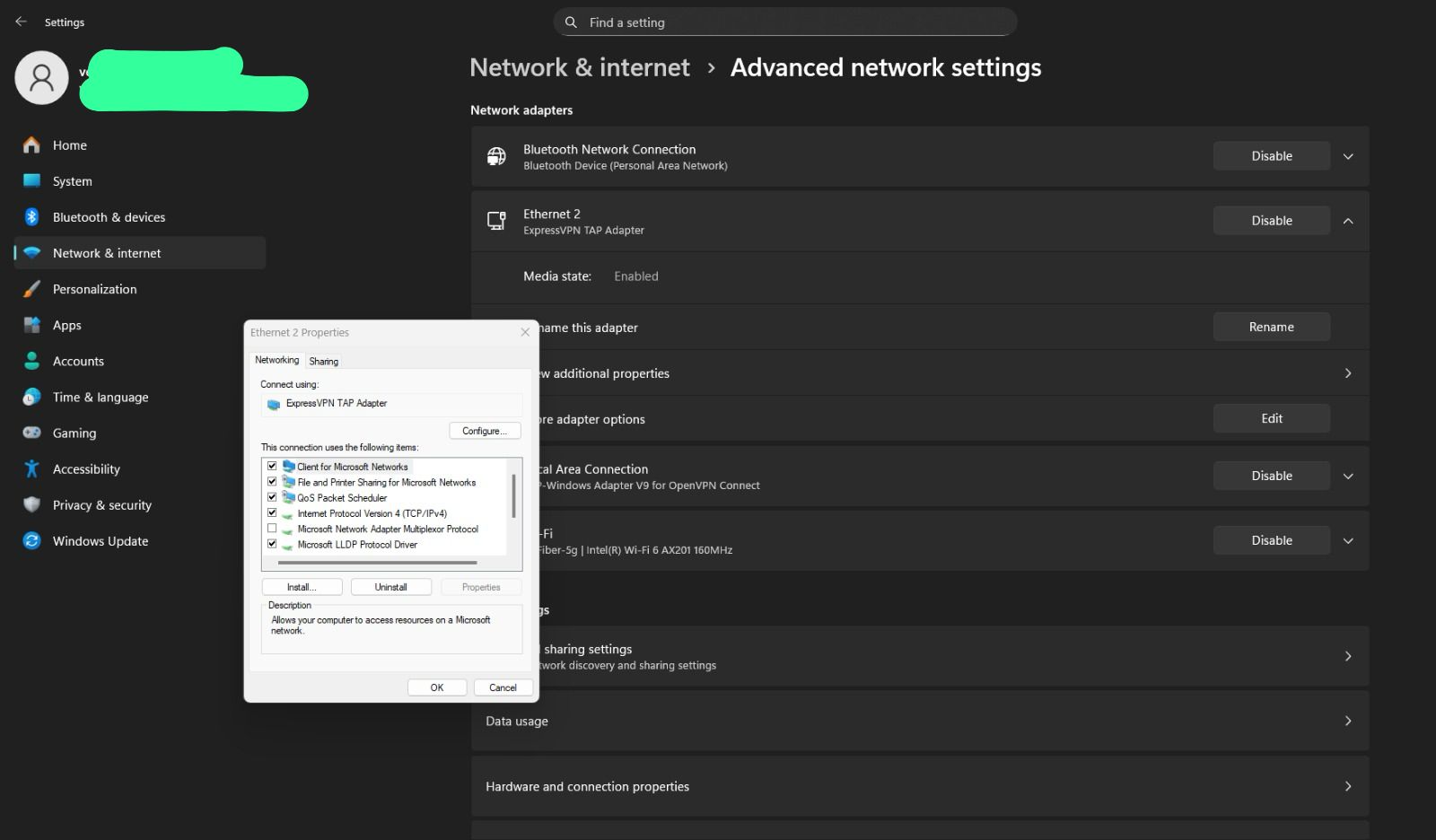
To access the Dinstar device, your laptop must be in the same network range as the factory default IP.
- Go to Start → Settings → Network & Internet → Status
- Click Advanced network settings → Change adapter options
- Right-click Ethernet → Properties
- Select Internet Protocol Version 4 (IPv4) → Properties
- Choose Use the following IP address
Enter the following values:
- IP Address: 192.168.11.4
- Subnet Mask: 255.255.255.0
- Default Gateway: Leave blank
Step 3: Access Dinstar Using Default IP
Open Google Chrome and enter the following IP address in the address bar:
http://192.168.11.1
Log in using the default admin credentials provided by Dinstar.This gives you access to the Dinstar web configuration panel.
Step 4: Configure Dinstar Network Settings
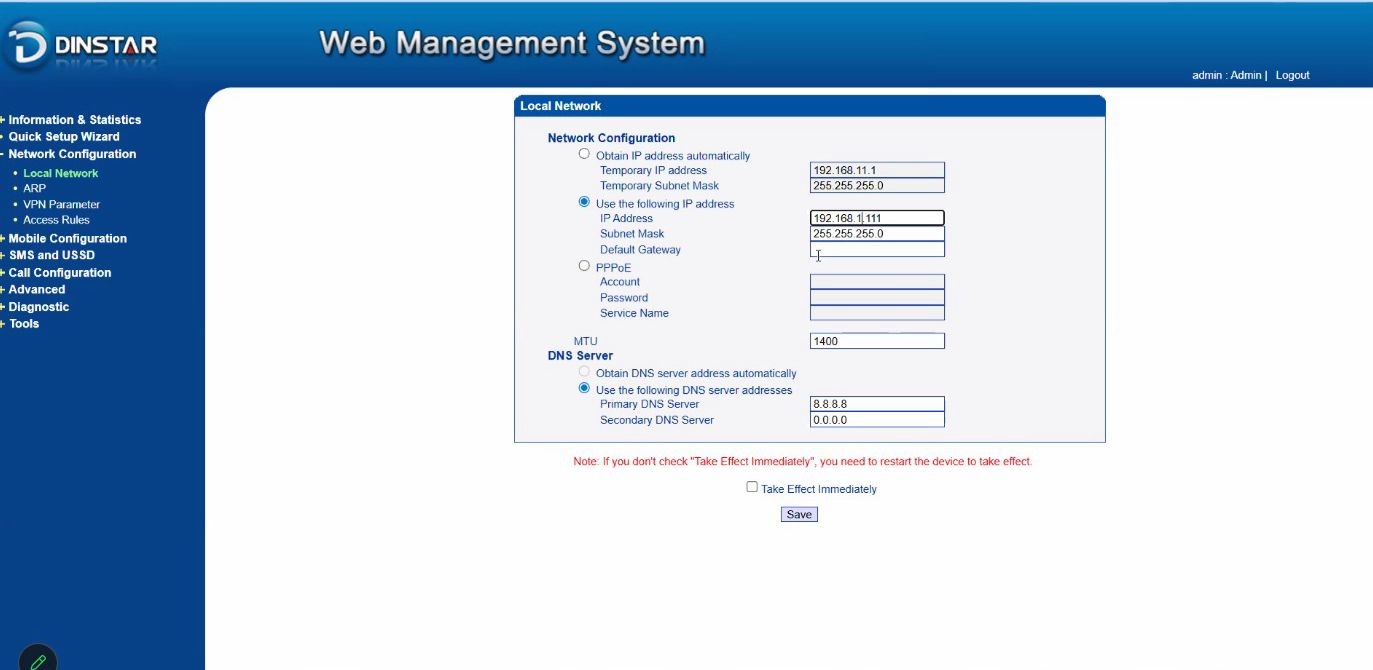
Inside the Dinstar dashboard, navigate to:
Network Configuration → Local Network
- Select Use the following IP address
- Enter a new IP address based on your office or production network
- Set the correct Subnet Mask and Default Gateway
You can find the correct gateway by opening Command Prompt on your system and running ipconfig.
Click Save to apply the changes.
Step 5: Restart Dinstar and Reconnect Using New IP
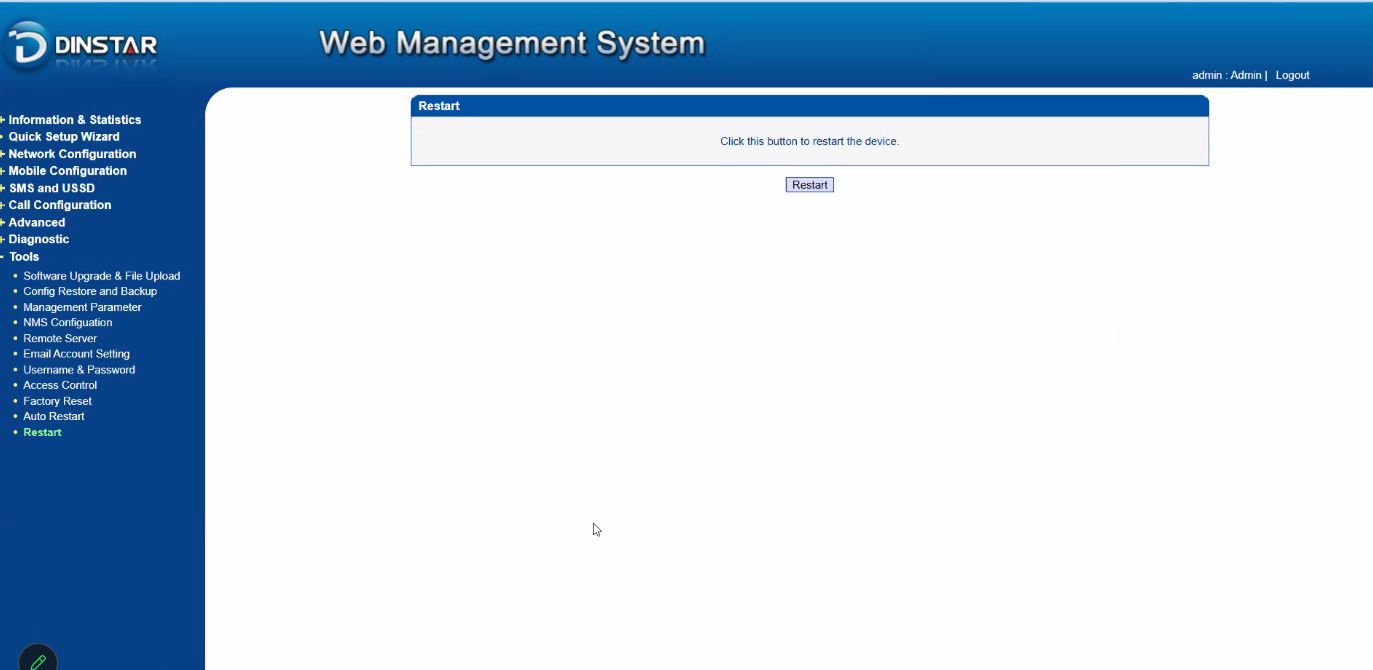
After saving the network configuration:
- Go to Tools → Restart
- Wait for the Dinstar device to reboot
Once restarted:
- Change your laptop IP settings back to Automatic (DHCP)
- Reconnect the Dinstar device to your router or switch
- Access the Dinstar web interface using the new IP address
This completes the Dinstar device network setup.
Click here to continue the Dinstar SIP Setup tutorialConclusion
By completing this setup, you have successfully configured your Windows network and Dinstar SIP gateway to work seamlessly with Pronnel AI Calling.Setting a static IPv4 address and verifying network connectivity ensures stable SIP communication and reliable call handling.
Proper Dinstar network configuration allows Pronnel to route inbound and outbound AI calls without interruption.Once the SIP gateway is correctly connected, you can confidently enable AI calling workflows such as automated lead calls, follow-ups, and missed-call handling.
We recommend reviewing your network and SIP settings whenever there are infrastructure changes.
Frequently Asked Questions About Dinstar SIP Connection
Why do I need to set a static IPv4 address on Windows?
A static IPv4 address ensures consistent network communication between your Windows system and the Dinstar SIP gateway, preventing SIP registration and call routing issues.
Can I use Wi-Fi instead of Ethernet for Dinstar SIP setup?
Ethernet is strongly recommended for Dinstar SIP gateways as it provides better stability, lower latency, and reliable voice communication.
How do I find my default gateway if I am unsure?
You can open Command Prompt on Windows and run the ipconfig command. The Default Gateway value shown there should be used in both Windows and Dinstar network settings.
What should I do if I cannot access the Dinstar web interface?
Ensure your Windows system and Dinstar device are on the same network, verify the IP address, disable firewall temporarily if required, and confirm the device is powered on.
Is it necessary to restart the Dinstar device after network changes?
Yes, restarting the Dinstar device ensures that all updated network and SIP configurations are properly applied.
Does Pronnel automatically configure SIP settings on Dinstar?
No, SIP and network configurations must be done manually on the Dinstar device. Pronnel only uses the SIP credentials to establish AI calling connections.